












Are you looking to enhance your trading experience on a Mac? Learning how to install MT4 on Mac is the first step towards accessing powerful trading tools and analytics right at your fingertips. In this guide, we’ll walk you through the simple process of setting up MetaTrader 4 on your Mac, ensuring you’re ready to dive into the world of forex trading. Don’t miss out on this opportunity, read on and start your trading journey today!
Features of MetaTrader 4 on macOS
MT4 on macOS offers several features that enhance the trading experience for users. Here are some of the key features:

- User-Friendly Interface: MT4 on macOS maintains a clean and intuitive interface, making it easy for both beginners and experienced traders to navigate the platform.
- Advanced Charting Tools: Users can access a variety of chart types, timeframes, and technical indicators. Customizable charts allow traders to analyze market trends effectively.
- Multiple Order Types: MT4 supports various order types, including market orders, limit orders, stop orders, and trailing stops, enabling traders to implement diverse strategies.
- Automated Trading: Users can take advantage of Expert Advisors (EAs) to automate trading strategies. This feature allows for algorithmic trading and helps execute trades based on pre-set criteria.
- Strong Security Features: The platform employs advanced encryption technologies to ensure secure transactions and protect user data, giving traders peace of mind while trading online.
See now:
- MT4 Account Types – Which is Better for Forex Trading?
- MT4 For Mobile Trading Platform – How to Download MT4
- Step-by-step Guide using MT4 Demo Account Guide In 5 Minutes
How to install MT4 on Mac?
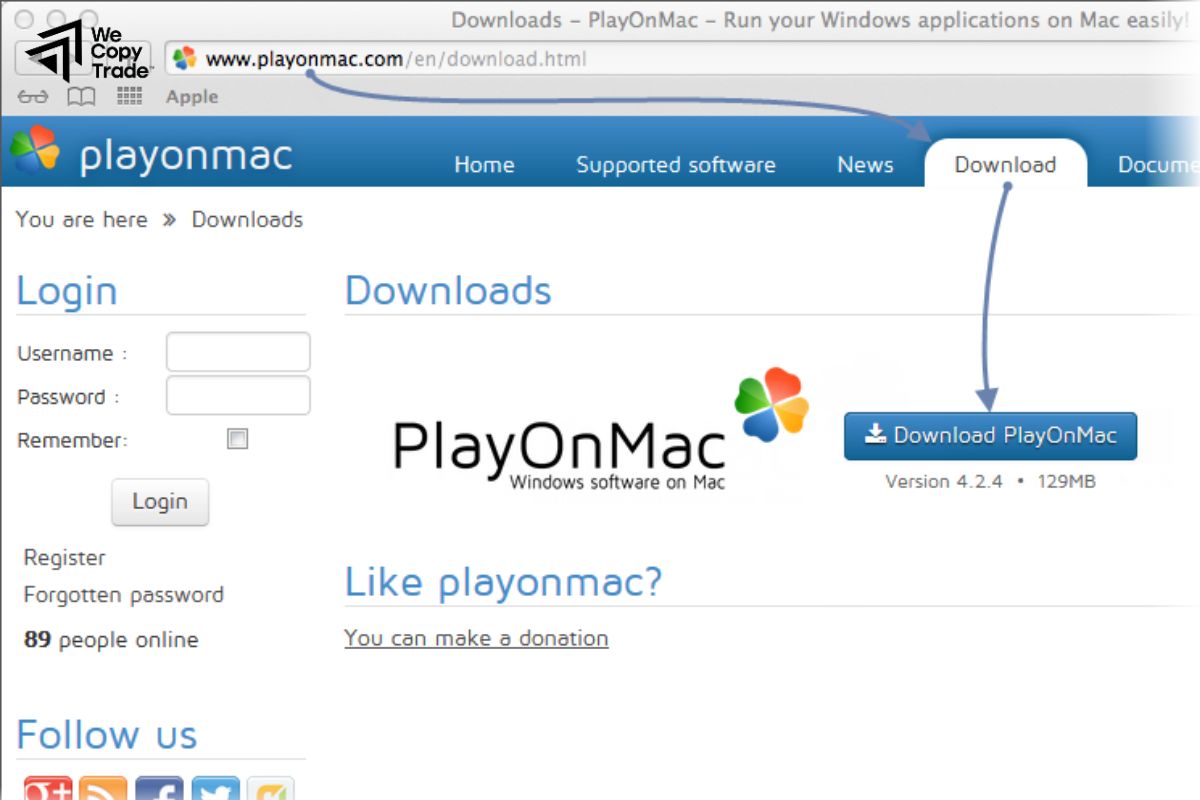
How to install MT4 on Mac involves a few specific steps, as the platform is primarily designed for Windows. Here’s how you can do it:
Method 1: Using Wine

Step 1: Download Wine
- Visit the WineHQ website and download the Wine version suitable for macOS.
- Follow the installation instructions provided on the website to install Wine on your Mac.
Step 2: Download MT4
- Go to the broker’s website where you want to download MT4 and download the MT4 installation file (usually a .exe file).
Step 3: Install MT4 Using Wine
- Open Terminal on your Mac (you can find it in Applications > Utilities).
- Navigate to the directory where the MT4 installation file is downloaded. For example: cd Downloads
- Run the installer with Wine by typing: wine name_of_mt4_installer.exe
- Follow the installation prompts as you would on a Windows machine.
Step 4: Launching MT4
- Once installed, you can start MT4 by navigating to its installation directory via Terminal and running it with Wine: wine path_to_mt4_directory/terminal.exe
Method 2: Using a Virtual Machine

Step 1: Install VirtualBox or Parallels
- Download and install VirtualBox (free) from the VirtualBox website or purchase Parallels Desktop for a smoother experience.
Step 2: Set Up a Windows Virtual Machine
- Follow the instructions to create a new virtual machine and install a Windows operating system on it.
Step 3: Download and Install MT4
- Once your Windows virtual machine is running, open a web browser in Windows, download the MT4 installation file from your broker, and install it as you normally would on a Windows PC.
Method 3: Using CrossOver

Step 1: Download CrossOver
- Visit the CrossOver website and download the software (it’s a paid application but often has a trial version).
Step 2: Install CrossOver
- Follow the installation instructions to set up CrossOver on your Mac.
Step 3: Install MT4
- Open CrossOver and use the option to install a Windows application.
- Select the MT4 installer file you downloaded and follow the prompts to complete the installation.
How to use MT4 on Mac
Using MT4 on a Mac can be a smooth experience once you have it installed. Here’s a guide on how to effectively use MT4 on your Mac:
Launching MT4
Using Wine:
- Open Terminal and navigate to your MT4 installation directory.
- Use the command: wine path_to_mt4_directory/terminal.exe
Using Virtual Machine:
- Start your Windows virtual machine.
- Locate the MT4 shortcut on your Windows desktop or in the Start Menu and double-click to launch.
Using CrossOver:
- Open CrossOver and find MT4 in your installed applications.
- Click on it to launch.
Setting Up Your Account
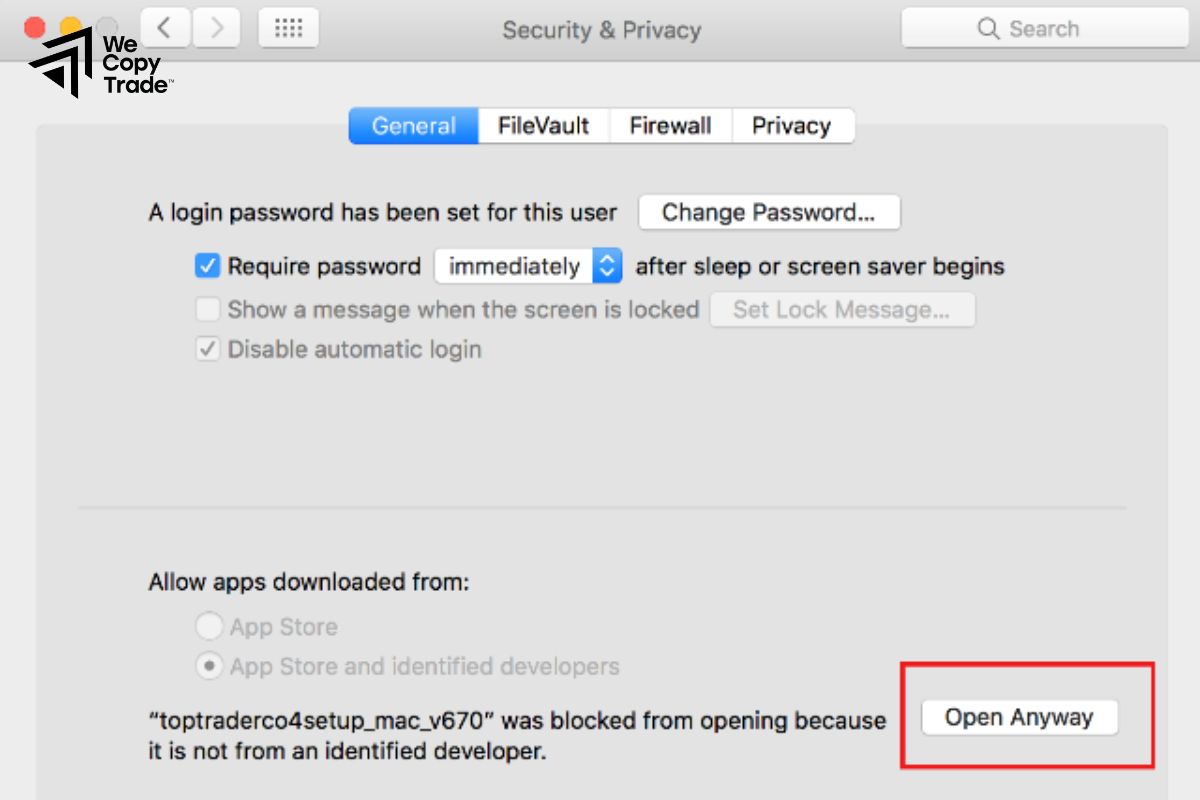
Log In
- Once MT4 is open, go to the top menu and click on File > Login to Trade Account.
- Enter your trading account credentials provided by your broker: Account Number, Password and Server
Choose Between Live or Demo Account:
- If you are just starting out, you may want to set up a demo account to practice trading. Many brokers offer demo accounts.
Place Trades
- Market Orders: Right-click on the chart, select Trading > New Order or press F9. Fill in the details and click Buy or Sell.
- Pending Orders: Select type (e.g., Buy Limit), set parameters, and click Place.
Manage Trades
- Monitor open trades in the Terminal window.
- Right-click on a trade to Modify or Close.
Analyze Performance
- Check the Account History tab for trade reports.
FAQs about installing MT4 on Mac
Here are some FAQs about how to install MT4 on Mac:
Can I install MT4 directly on my Mac?
- No, MT4 does not have a native Mac version. However, you can install it using third-party software like Wine, a virtual machine (e.g., VirtualBox or Parallels), or CrossOver.
Do I need a Windows license for installing MT4 on a Mac?
- No, you don’t need a Windows license if you’re using Wine or CrossOver. However, you will need a Windows license if you use a Virtual Machine.
Is Wine safe to use on Mac for MT4?
- Yes, Wine is safe and widely used to run Windows applications on Mac. However, some features in MT4 may not work as smoothly as they would on Windows.
Do brokers offer MT4 for Mac users?
- Some brokers provide native MT4 solutions or customized installers for Mac. Check with your broker if they offer a Mac-compatible version or installation guide.
Conclusion
In conclusion, learning how to install MT4 on Mac is essential for traders who want to harness the platform’s powerful features on their preferred operating system. Whether you’re a beginner or an experienced trader, installing MT4 on Mac provides access to a wide range of tools and strategies for successful trading. Ready to start trading on your Mac? Follow this guide and install MT4 today for a seamless trading experience!
See more: