













In trading, timing is key, and MT4 alerts can help you stay ahead of market movements without constantly monitoring the charts. With these alerts, you’ll be notified instantly when important price levels are hit, allowing you to act quickly. In this quick guide, we’ll show you how to set up MT4 alerts on both desktop and mobile, so don’t miss out on key market changes!
Importance of Alerts in MT4
In the highly dynamic world of trading, staying informed about key market movements is crucial. MT4 alerts play an essential role in helping traders keep up with price changes, market trends, and trading opportunities without needing to constantly monitor their screens. Here’s why MT4 alerts are so important:

- Real-Time Market Updates: MT4 alerts notify you instantly when a specific price level, indicator condition, or market event is triggered. This allows you to make timely decisions, even when you’re not actively watching the market.
- Time-Saving: By setting alerts, traders can focus on other tasks while staying informed. Instead of constantly tracking the market, MT4 alerts enable you to manage your time more effectively, ensuring that you’re only alerted when it matters.
- Reduced Risk: Alerts help you stay ahead of sudden market shifts, allowing you to take action quickly to protect your investments. Whether it’s closing a position or entering a trade at the right time, alerts can reduce the risk of missing critical opportunities.
See more:
- MT4 For Mobile Trading Platform – How to Download MT4
- Detailed instructions on how to install MT4 just 3 minutes
- All Truths About MetaTrader 4 – Is MT4 safe to use
Types of MT4 Alerts
Here are the main types of MT4 alerts:
Price Alerts
Price alerts notify you when a specific asset reaches a predetermined price level. This is especially useful for setting entry or exit points in your trading strategy.
- Example: You set an alert to notify you when EUR/USD reaches 1.1500.
Indicator-Based Alerts
These alerts are triggered by technical indicators, such as moving averages, RSI, or MACD. You can set alerts to notify you when certain indicator conditions are met, like when an RSI crosses a threshold.
- Example: An alert goes off when RSI crosses below 30, indicating a potential oversold condition.
Time Alerts

Time alerts notify you at specific times or intervals, which can be useful for time-based trading strategies or reminders to check the market.
- Example: You receive an alert every hour to check the price action of a particular asset.
News Alerts
MT4 can be configured to send alerts when important market news is released. This helps traders stay informed about key economic events that could impact their trades.
- Example: An alert triggers when a scheduled news event, like a GDP report, is about to be released.
Email Alerts
Email alerts send notifications directly to your email inbox when the conditions you set are met. This can be helpful if you’re away from the platform and need updates on important price movements or market conditions.
How to Set Up MT4 Alerts on Desktop
Setting up alerts on MetaTrader 4 (MT4) is an easy process that helps you stay up to date with important market events without having to constantly monitor your charts. Here is a step-by-step guide how to set up MT4 alerts on your desktop:
Step 1: Open the MT4 Platform
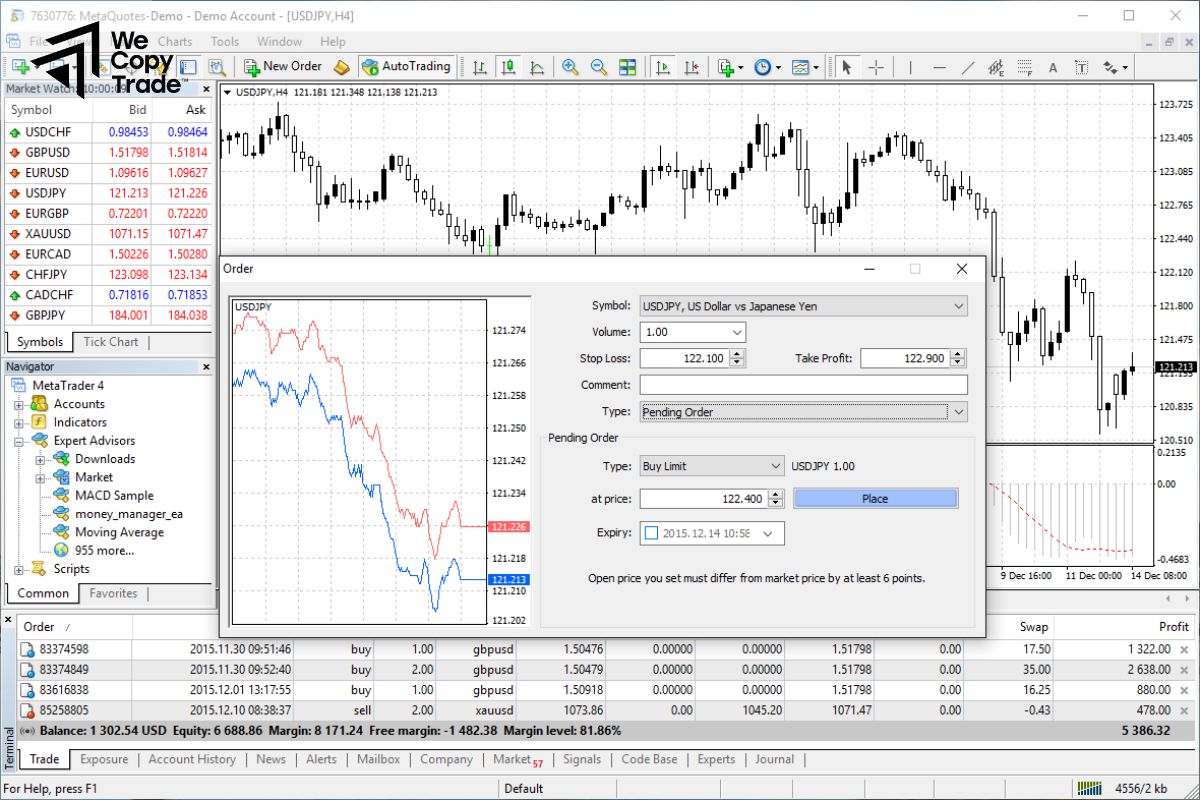
- First, open the MT4 platform and start your platform.
- Next, log in to your trading account. Make sure the asset you want to set an alert for is open in your chart window.
Step 2: Access the “Terminal” Window
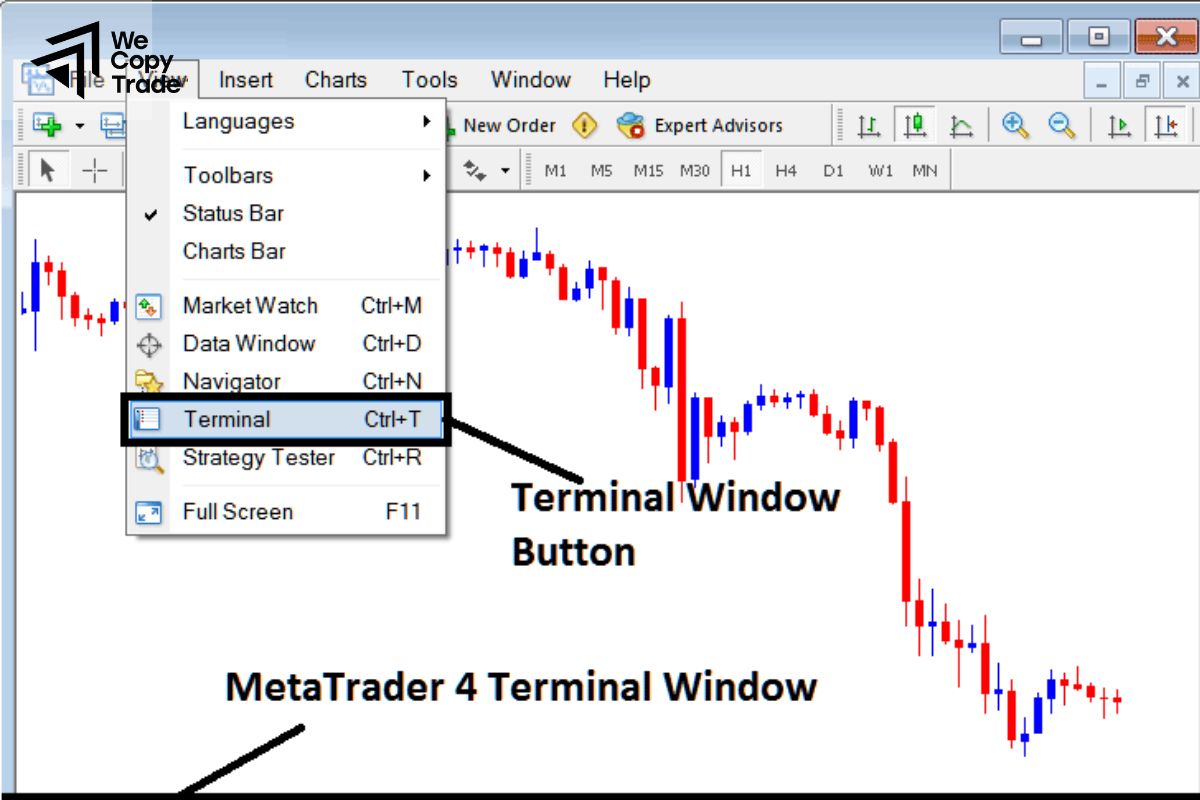
- At the bottom of the MT4 interface, look for the Terminal window.
- If you don’t see it, you can open it by clicking View in the top menu and then selecting Terminal (or pressing Ctrl + T).
Step 3: Go to the “Alerts” Tab
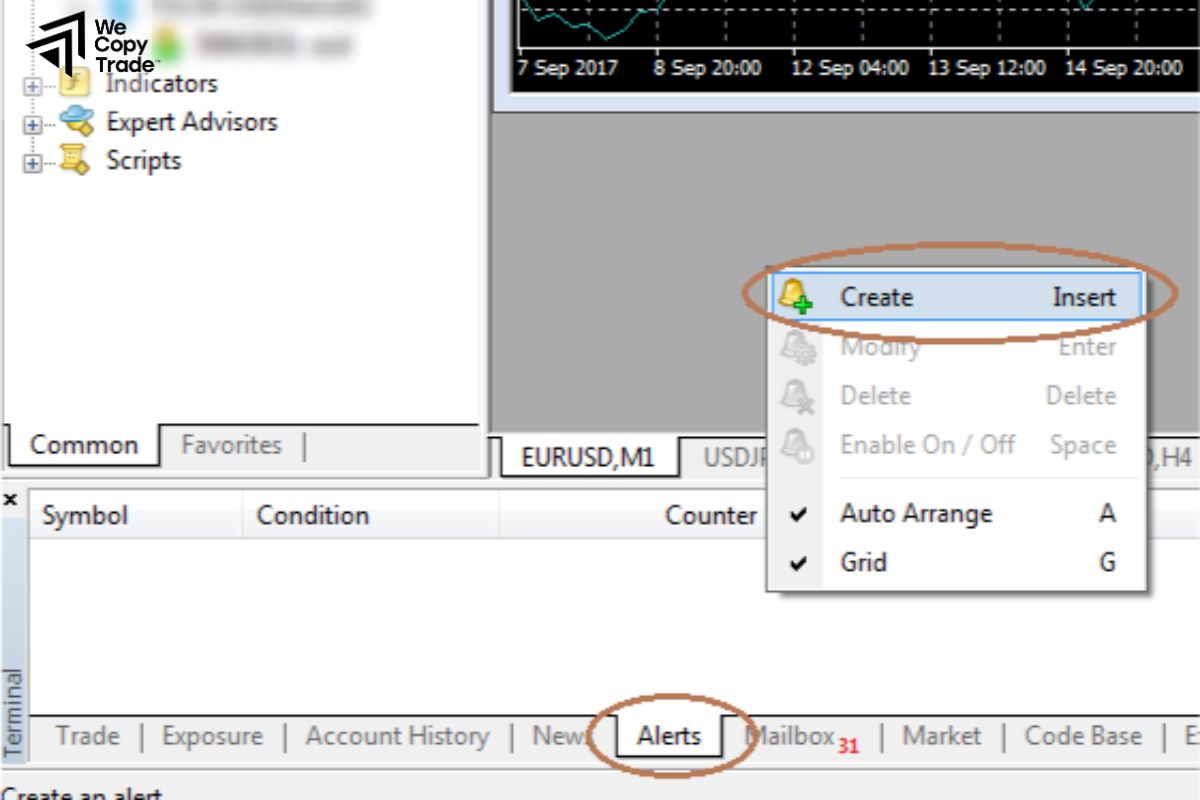
In the Terminal window, click the Alerts tab. This is where you will manage and create your alerts.
Step 4: Create a New Alert
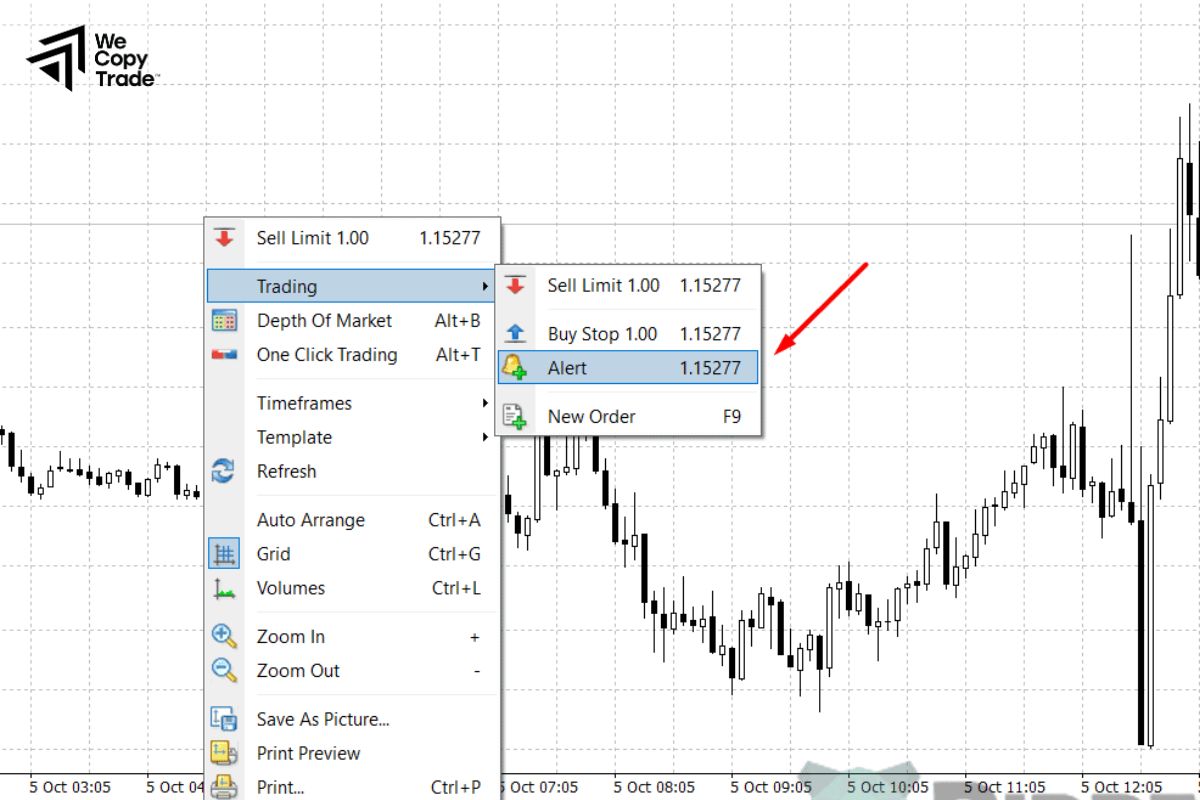
- Right-click anywhere in the Alerts tab and select Create.
- This will open the Alert Editor window, where you can customize the conditions for your alert.
Step 5: Set Up Alert Conditions
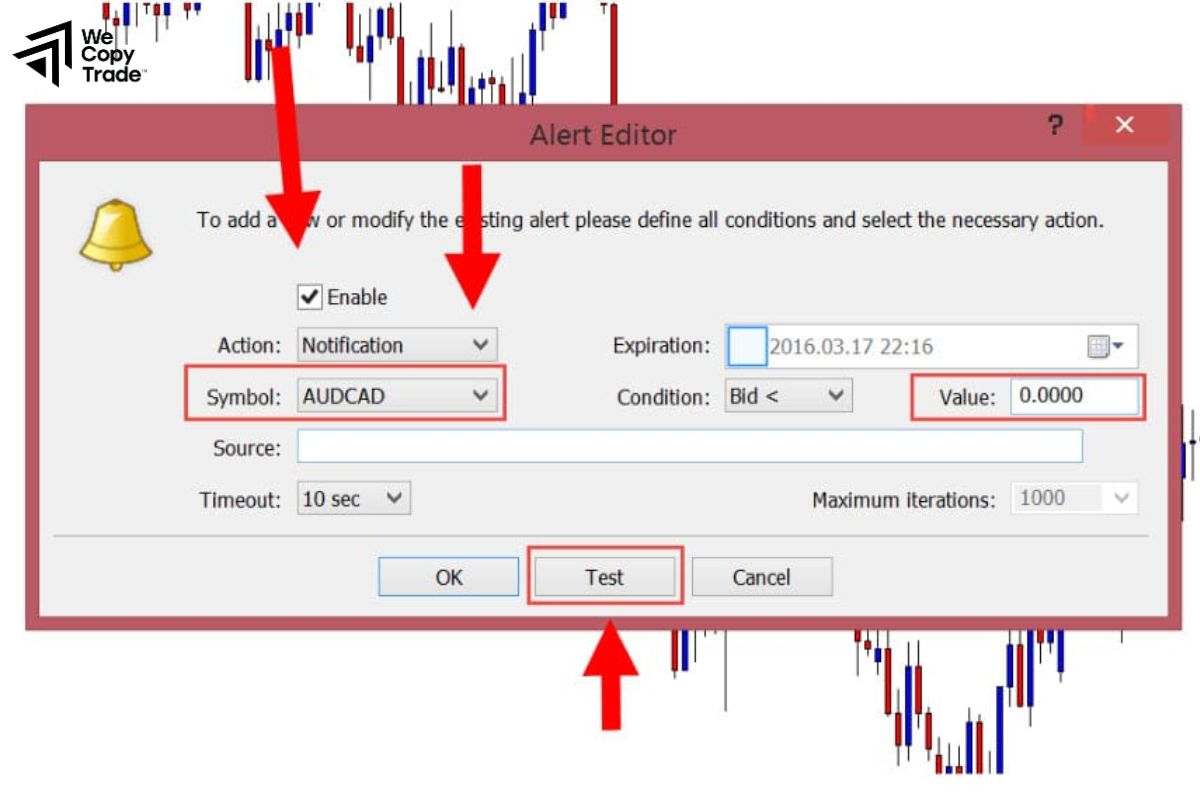
In the Alert Editor, you can customize the items in the following order:
- Select the asset (e.g. EUR/USD) you want to set up an alert for.
- Select when the alert will be triggered. Conditions include Bid greater than or Bid less than a specific price.
- Enter the price at which you want the alert to be triggered.
- Source: You can choose the alert type, audio alert, email, or push notification.
- Specify how many times the alert will be triggered.
Step 6: Customize Notification Settings (Optional)
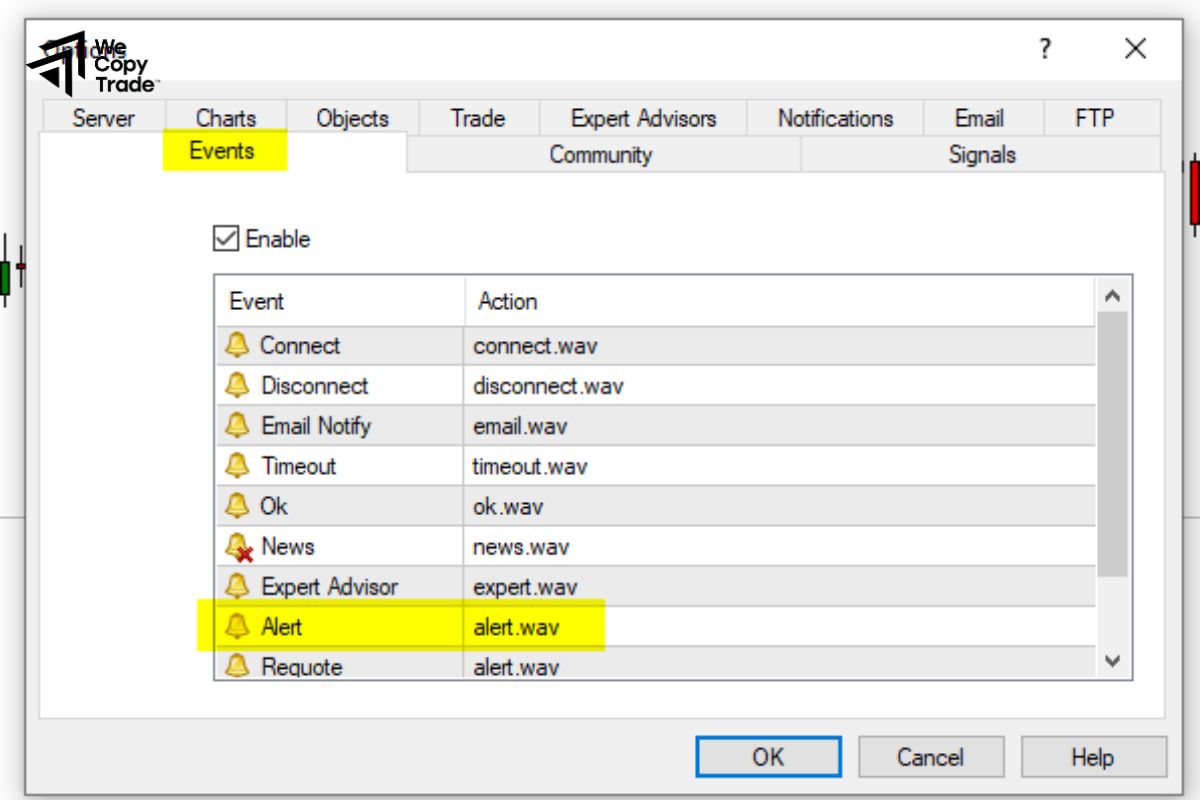
- If you want to receive alerts via email or push notification, go to Tools > Options and select the Alerts or Email tab.
- Here you can set up push notifications via email or mobile.
Step 7: Activate Alert
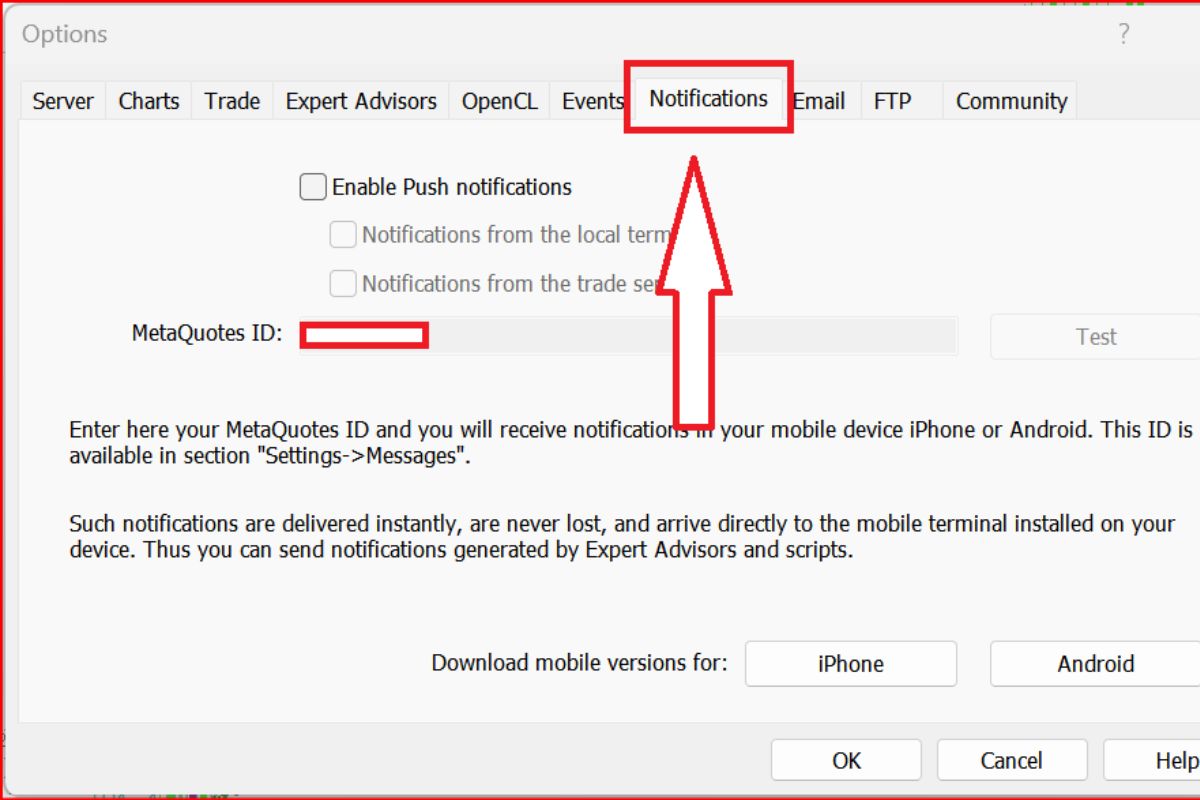
- After setting up the conditions, click OK to create the alert.
- The alert will now be active and listed in the Alerts tab.
How to Set Up MT4 Alerts on Mobile
Setting up alerts on the MetaTrader 4 mobile app is a great way to stay updated on important price movements while you are on the go. Here is a simple guide to help you how to set up MT4 alerts on your mobile device:
Step 1: Open the MT4 Mobile App

Launch the MT4 mobile app on your smartphone including iOS and Android operating systems. Make sure you are logged in to your trading account.
Step 2: Go to the Chart or Quotes Screen
Navigate to the Quotes or Charts screen to find the asset you want to set an alert for. You can choose from any currency pair, commodity or instrument available in your account.
Step 3: Select Instrument
Tap on the instrument you want to set an alert for (e.g. EUR/USD) from the Quotes list. This will open an options menu.
Step 4: Open Alert Settings

- After selecting the instrument, tap the “Alerts” option in the menu.
- If you don’t see the option directly, you may need to tap the three dots to open more options.
Step 5: Set Alert Parameters
- In Alert Settings, customize the following:
- Set the specific price level you want to be alerted to. You can choose to be notified when the price reaches a higher or lower level.
- Choose how you want to be notified (vibration, sound alert, etc.).
Step 6: Enable Push Notifications
- To ensure you receive alerts when you are not using the app, enable Push Notifications in your app settings:
- Go to Settings in the MT4 app. Navigate to Messages or Notifications and enable Push Notifications.
FAQ about some ways to set up MT4 alerts
Here are some frequently asked questions regarding how to set up MT4 alerts:
Can I set up alerts for multiple instruments?
- Yes, you can set up alerts for as many instruments as you like. Simply repeat the alert setup process for each instrument you want to monitor.
Can I set alerts based on custom indicators?
- Yes, you can set alerts based on custom indicators, provided that the indicator has built-in alert functionality. Check the settings for the specific custom indicator to set up alerts.
Are there any limitations to the number of alerts I can set?
- There is no strict limit on the number of alerts you can set in MT4; however, excessive alerts may make it challenging to manage them effectively. It’s best to prioritize the alerts that are most important to your trading strategy.
Conclusion
In conclusion, learning how to set up MT4 alerts is essential for effective trading. These alerts allow you to stay informed about critical market movements without constant monitoring, enhancing your trading efficiency and decision-making. Don’t miss out on important opportunities, start configuring your MT4 alerts today and take your trading to the next level!
See now: