












Do you want to improve your market analysis skills? Indicators on MetaTrader 5 are a useful tool to support you. Indicators will help you recognize buy and sell signals, identify trends and assess market volatility. Follow us to learn how to install indicators on MT5 right after this!
What are MT5 indicators?
MT5 indicators are powerful tools that can significantly enhance your trading strategies. These technical analysis tools leverage mathematical calculations to analyze market data, such as price, volume, and momentum. By interpreting this data, indicators provide valuable insights that can help you:

- Identify market trends: Determine whether the market is trending upwards, downwards, or sideways.
- Gauge trend strength: Assess the strength of the current trend to make more informed decisions.
- Time your entries: Identify optimal entry points for buy or sell orders.
- Create robust trading systems: Combine multiple indicators to build a more sophisticated and reliable trading approach.
See more:
- What is MT5 software? Basic steps using MT5 you need to know
- MT5 Mobile App Overview – How to Download MT5 Just 3 Minutes
- Comparing MT5 vs cTrader platform – Which platform is better?
- MT5 demo account explained – Opening a Free MT5 Demo Account
The importance of indicators in trading
Indicators are essential tools for traders to analyze market data and make informed decisions. They offer insights into various aspects of market behavior, such as trends and momentum. By combining different indicators, traders can create a more complete and accurate picture of the market’s current state and potential future direction.
For example:
- Trend-following indicators like Moving Averages and Bollinger Bands help identify the overall direction of a market (upward, downward, or sideways).
- Momentum indicators such as RSI and MACD measure the speed and strength of price changes, indicating potential overbought or oversold conditions.
Indicator Classification
Traders can identify the overall direction of the market through trend indicators. They can be used to determine whether a market is in an uptrend, downtrend, or sideways trend.For the convenience of traders, indicators are divided into the following main types:
Moving Averages
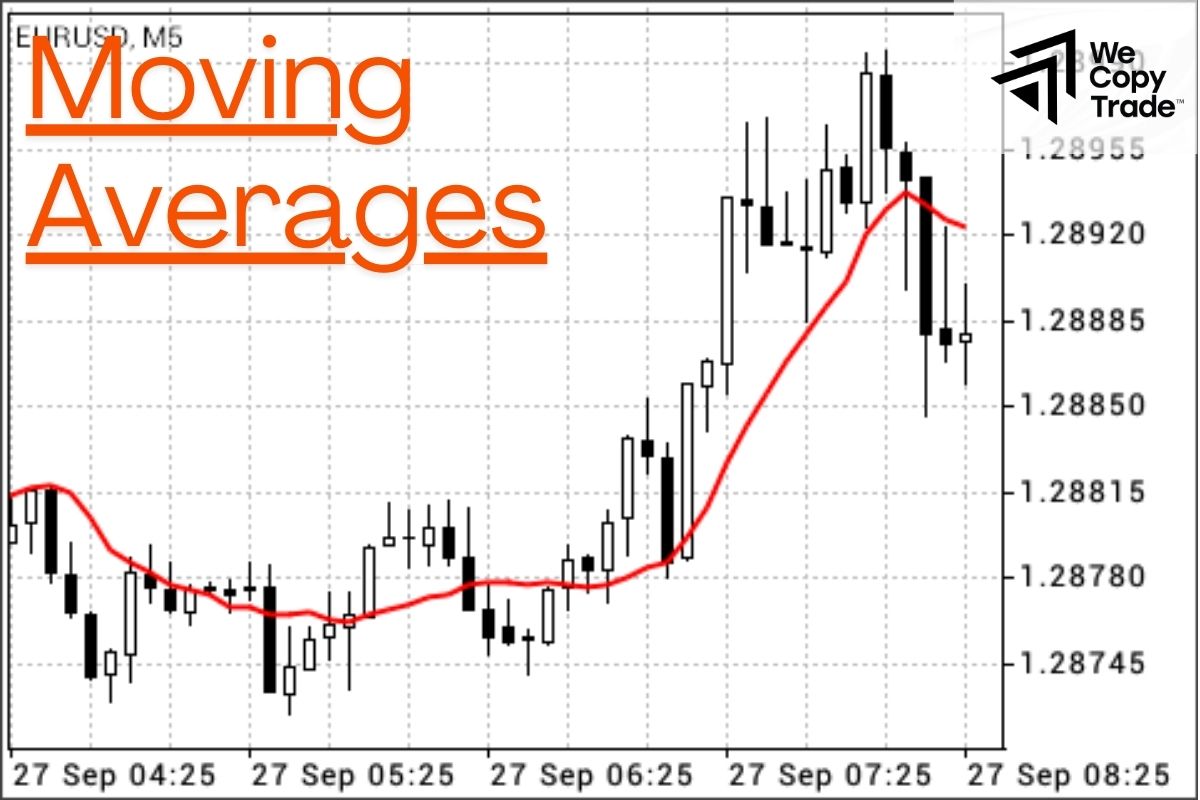
One of the most common trend indicators, moving averages smooth out price data to reveal underlying trends. Simple, exponential, and weighted moving averages are different types of trend indicators that can be used to pinpoint trends of varying lengths.
Trend Lines
Trend lines are drawn along the highs or lows of a market to visualize the direction of a trend. Uptrend lines connect successive higher lows, while downtrend lines connect successive lower highs.
Momentum Indicators
They measure the speed and strength of price changes. They can help traders identify overbought or oversold conditions, which may signal potential reversals.
- Relative Strength Index (RSI): RSI measures the speed and change of price movements over a specific period. It ranges from 0 to 100, with readings above 70 often indicating overbought conditions and readings below 30 indicating oversold conditions.
- Stochastic Oscillator: The stochastic oscillator measures the momentum of an asset’s price relative to its price range over a specific period. It is often used to identify overbought and oversold conditions, as well as potential divergences between price and momentum.
Volatility Indicators
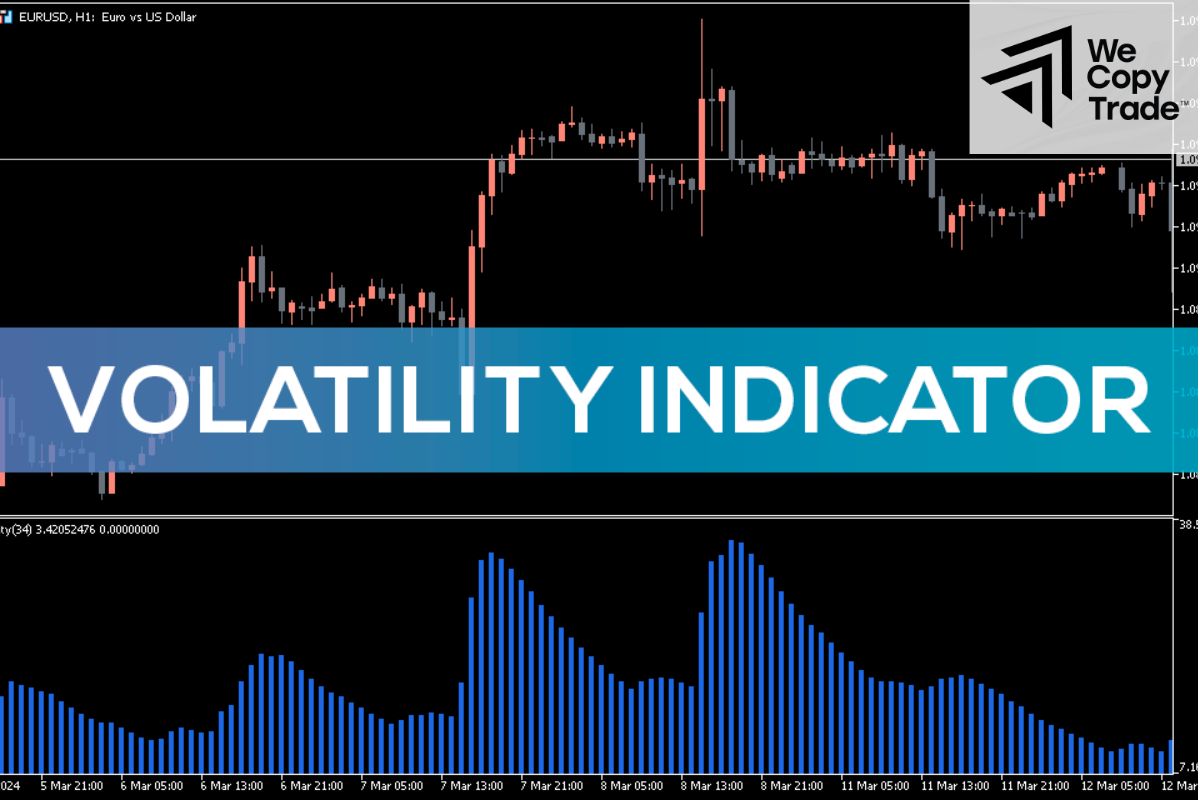
Volatility indicators measure the degree of price fluctuations within a given period. They can help traders assess the risk associated with trading and identify potential opportunities.
- Bollinger Bands: Bollinger Bands consist of a simple moving average and two standard deviation bands above and below it. They can help traders identify periods of high or low volatility. When prices break out of the upper or lower band, it may signal a potential trend reversal.
Volume Indicators
Volume indicators measure the amount of trading activity that occurs in a market. They can help traders gauge the strength of a trend or identify potential divergences between price and volume.
- Volume Bars: Volume bars represent the trading volume for each time period. They can be used to compare trading activity across different timeframes and identify periods of high or low interest.
- Accumulation/Distribution Indicator: This indicator measures the buying and selling pressure on a market. It can help identify potential accumulation or distribution zones, which may indicate future price movements.
How to install indicators on MT5
Step 1: Find an indicator
There are two main ways to find an indicator:
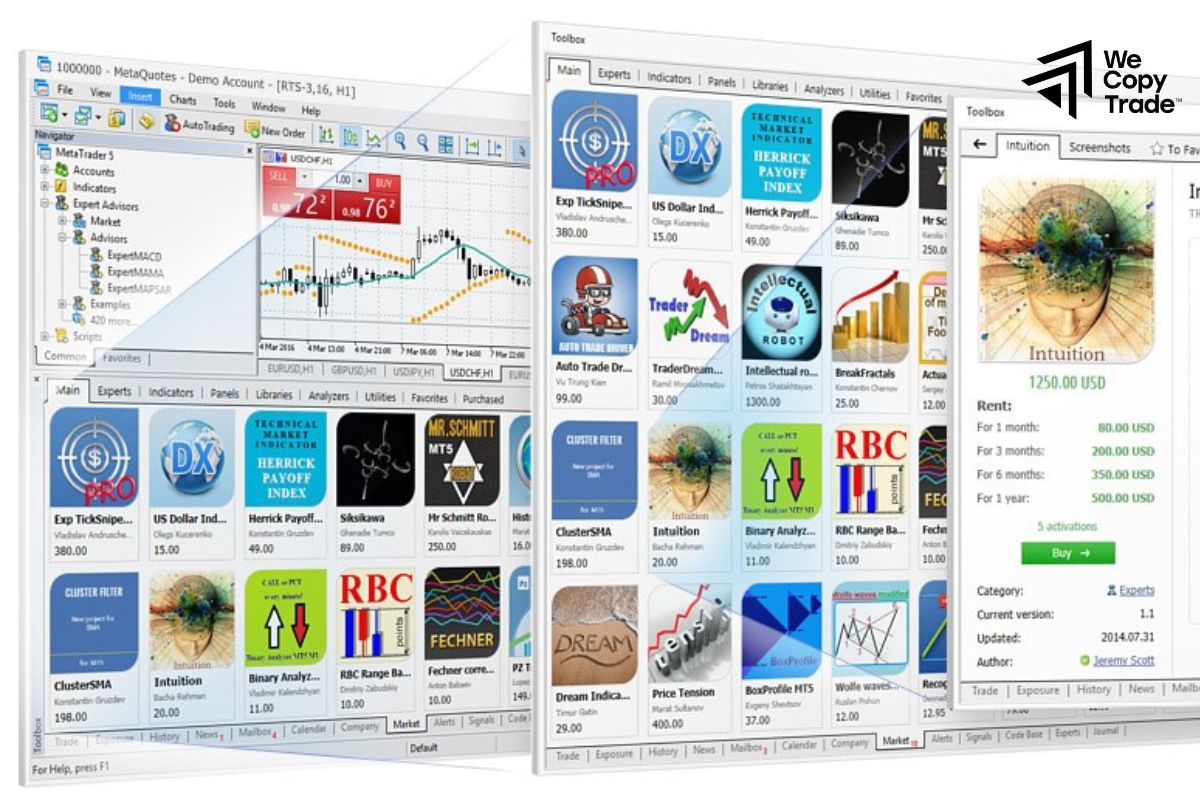
- MetaTrader 5 Market: The MT5 platform has a built-in market where you can find thousands of indicators developed by different programmers. You can search by indicator name, indicator type, or developer.
- Third-party websites: Many websites offer free or paid indicators. However, be careful when downloading from unknown sources, as they may contain malicious code.
Step 2: Download the indicator
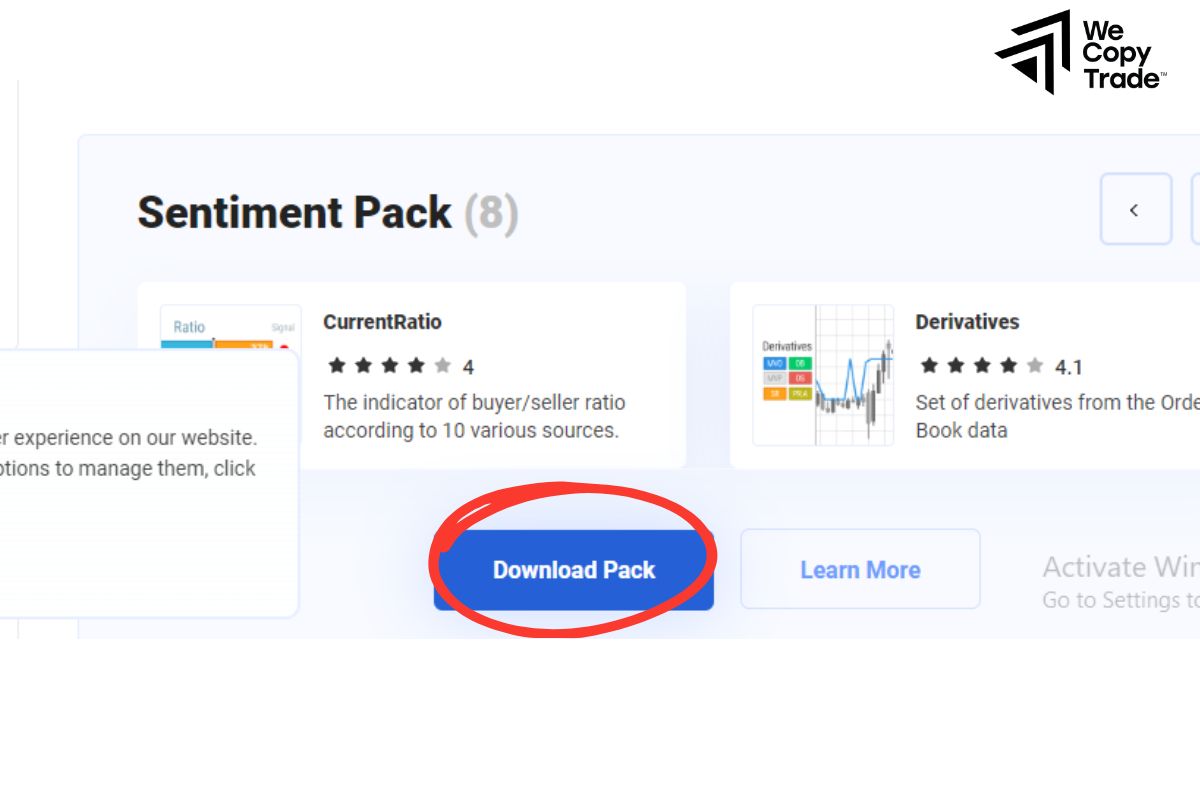
After finding the indicator you want, click the “Download” button and save the file to your computer. The indicator file usually has the extension .ex5.
Step 3: Install the indicator
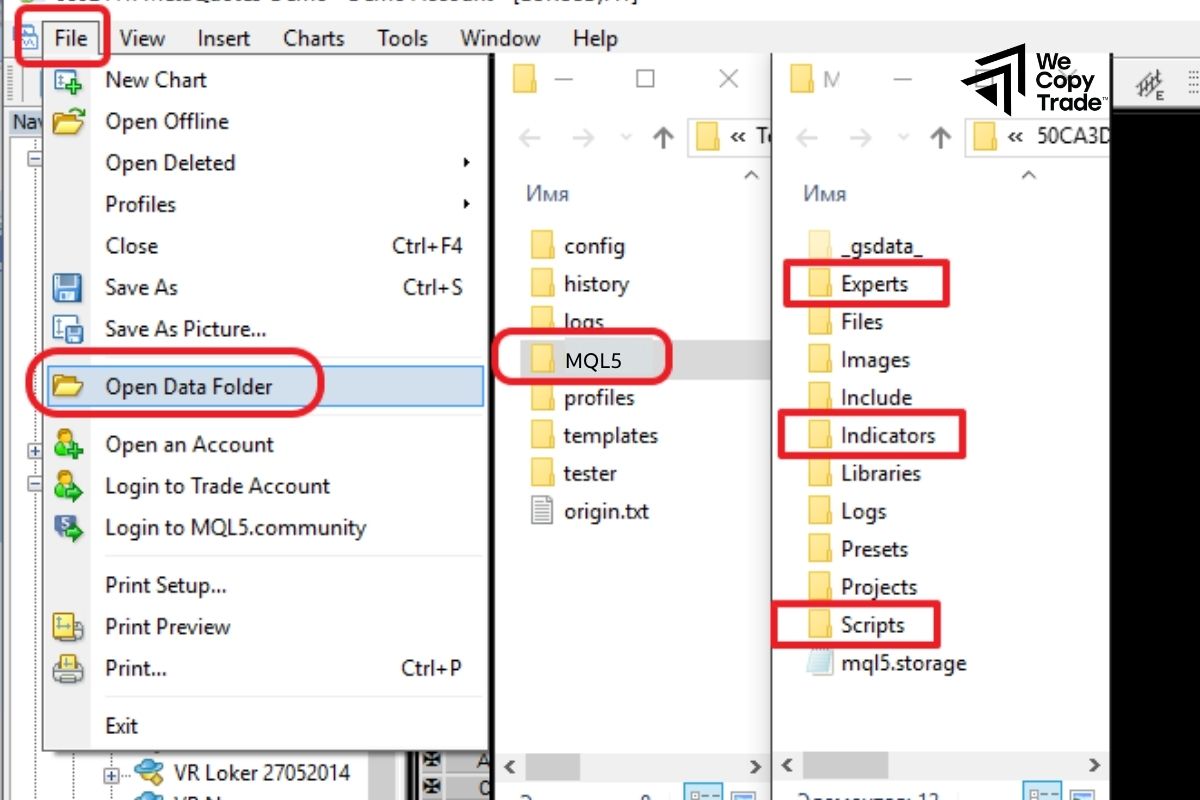
Open the MetaTrader 5 software.
Open the data folder:
- On the MT5 software, click on the File menu.
- Select Open Data Folder. A folder window will appear.
Find the “Indicators” folder:
- In the folder window that just opened, you will see a folder called MQL5. Open this folder.
- Inside the MQL5 folder, find and open the Indicators folder. This is where we will put the indicator files.
Step 4: Copy the indicator file into the folder
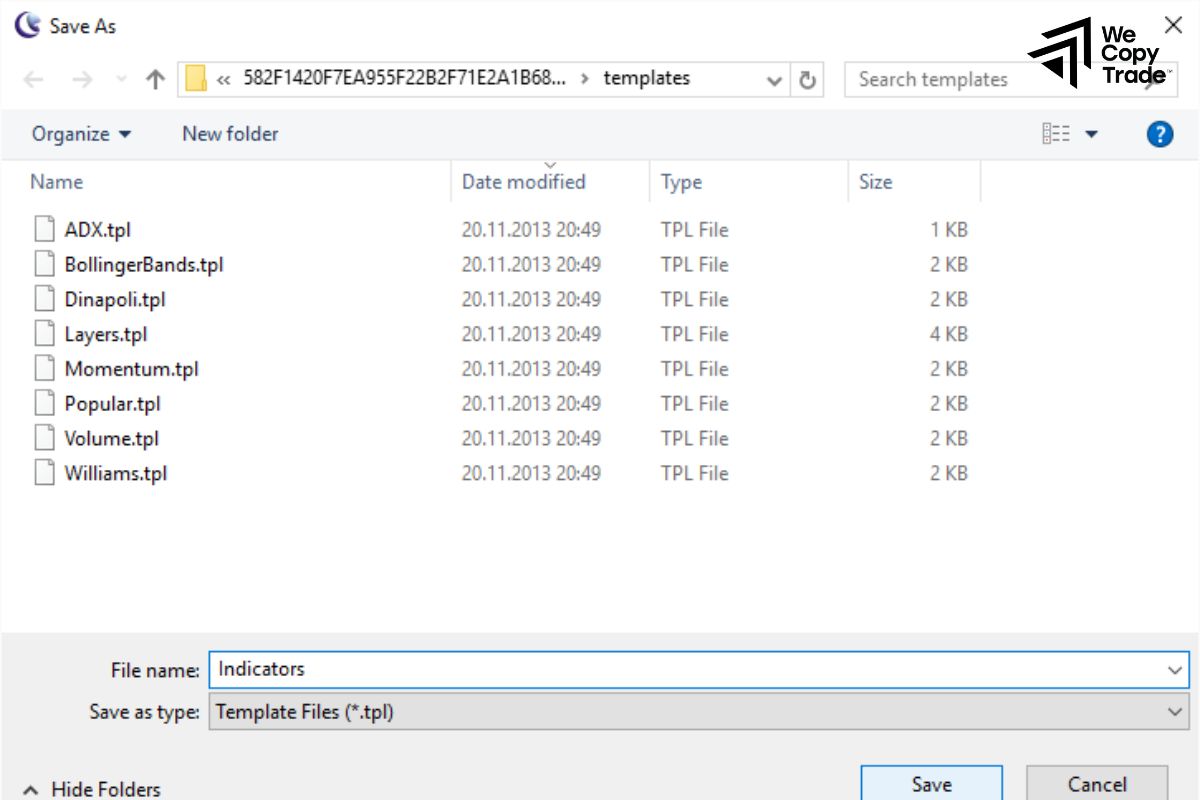
- Open the MetaTrader 5 software, in the left corner of the screen, you will see a window called Browser. If you don’t see it, go to the View -> Browser menu.
- In the Browser, expand the Indicators category. You will find the indicator you just installed here.
Step 5: Restart MT5
- Close the MT5 software completely.
- Reopen MT5. This restart helps MT5 update the list of new indicators.
Step 6: Drag the indicator onto the chart

- Open the chart of the currency pair you want to analyze.
- Click and hold on the indicator name in the Browser, then drag and drop it onto the chart.
- The indicator will automatically appear on your chart.
Step 7: Configure the indicator
- To customize how the indicator appears, right-click on the chart and select Indicator List.
- Find and double-click the name of the indicator you want to edit.
- A dialog box will appear, allowing you to change the indicator’s color, line style, and other parameters.
How to Remove or Customize an Indicator
Hide an indicator: If you want to temporarily hide an indicator, find it in the list. You’ll see a toggle button to the right. Click this button to turn the indicator off.
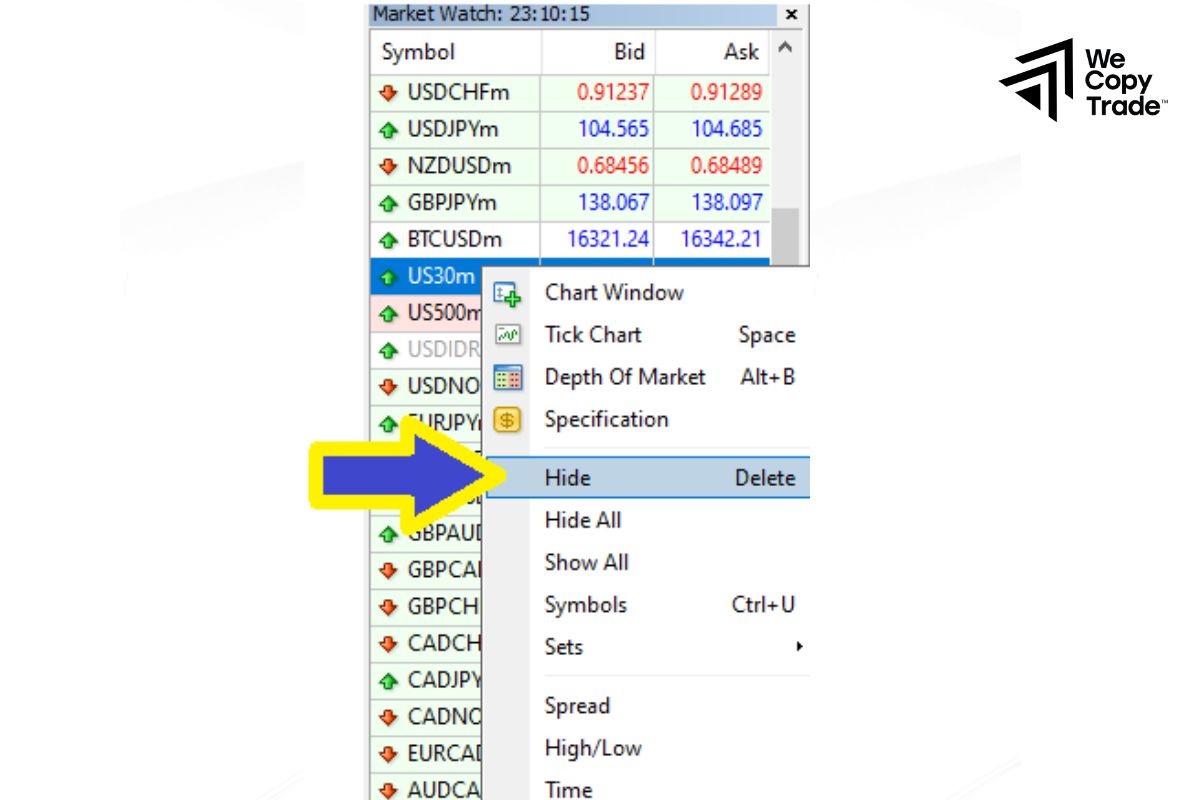
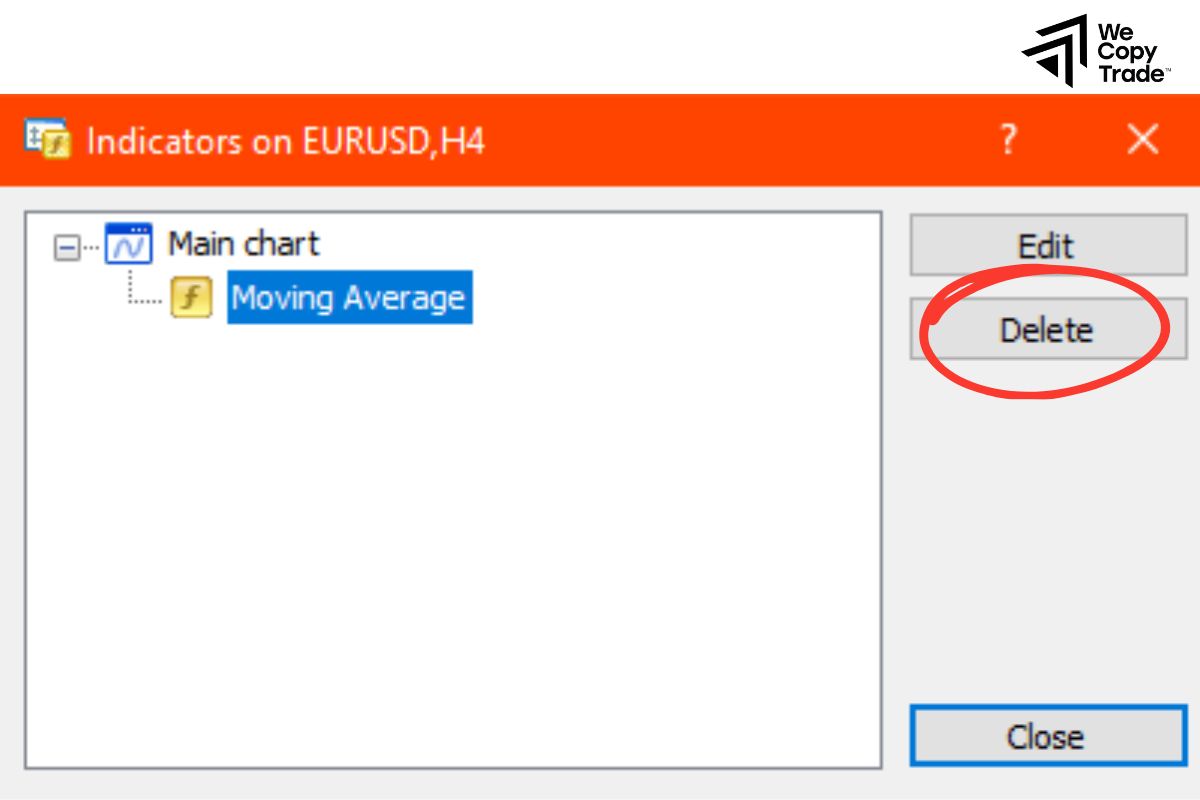
Delete an indicator:
- Delete a single indicator: Tap and hold the icon of the indicator you want to delete. A delete button will appear. Tap the delete button to delete the indicator.
- Delete multiple indicators: Tap and hold the icon of the first indicator, then tap the other indicators one by one to select them. When you’re done selecting them, tap the delete button.
Arrange indicators: To change the order in which your indicators appear, look for the slider to the right of each indicator. Tap and hold the slider, then drag the indicator to the desired position.
Conclusion
In conclusion, MT5 indicators are useful tools to help your trading decisions become more accurate. However, to limit risks, refer to other successful trading strategies and have a clear trading plan. Do not hesitate, apply the way how to install indicators on MT5 that I just shared and test them right away!
See now: