












Do you own a trading bot (Forex Robot) but are struggling to integrate it into your MetaTrader 4 software? Or have you completed the installation, only to find your bot remaining “silent” and failing to execute trades?
Don’t worry. At Wemastertrade, we understand that a minor error during the setup process can lead to the Robot malfunctioning, posing risks to your account.
This article will quickly explain what an Expert Advisor (EA) is and guide you through the most technically sound process on how to install an EA in MT4 so you can start automated trading immediately.
1. What is an Expert Advisor (EA)?
An Expert Advisor (abbreviated as EA) is a software programs specifically programmed for the MetaTrader platform (MT4/MT5). In Vietnam, traders often call them Forex Robots.
Unlike human traders, an Expert Advisor in MT4 offers several key advantages:
-
Automated Analysis: It monitors the market 24/5 without fatigue or distraction.
-
Automated Execution: It automatically executes Buy/Sell orders and sets Take Profit (TP) and Stop Loss (SL) immediately when market conditions satisfy its programmed logic.
-
Emotionless Trading: It completely eliminates psychological biases such as fear, greed, or impatience, which are common causes of loss.
2. Pre-Installation Preparation
To ensure the process of install an EA in MT4 runs smoothly, you need to prepare the following:
- Robot File: The file must have the extension .ex4 (the executable file) or .mq4 (the source code file).
- VPS (Recommended): If you want the bot to run 24/7, even when your computer is turned off, it is highly recommended to rent a Virtual Private Server (VPS). If you are only testing, you can use your personal computer, but you must ensure it remains connected to the internet and is not powered off.
These Robot files are written in a separate programming language. See details on what MQL4 is and how to program your own EA if you want to customize it.
3. Instructions on how to install EA into MT4 (Standard 5-Step Procedure)
Follow these steps in order to ensure the robot runs smoothly:
Step 1: Open the Data Folder
- Open the MT4 software.
On the menu bar in the top left corner, select File
- Open Data Folder.
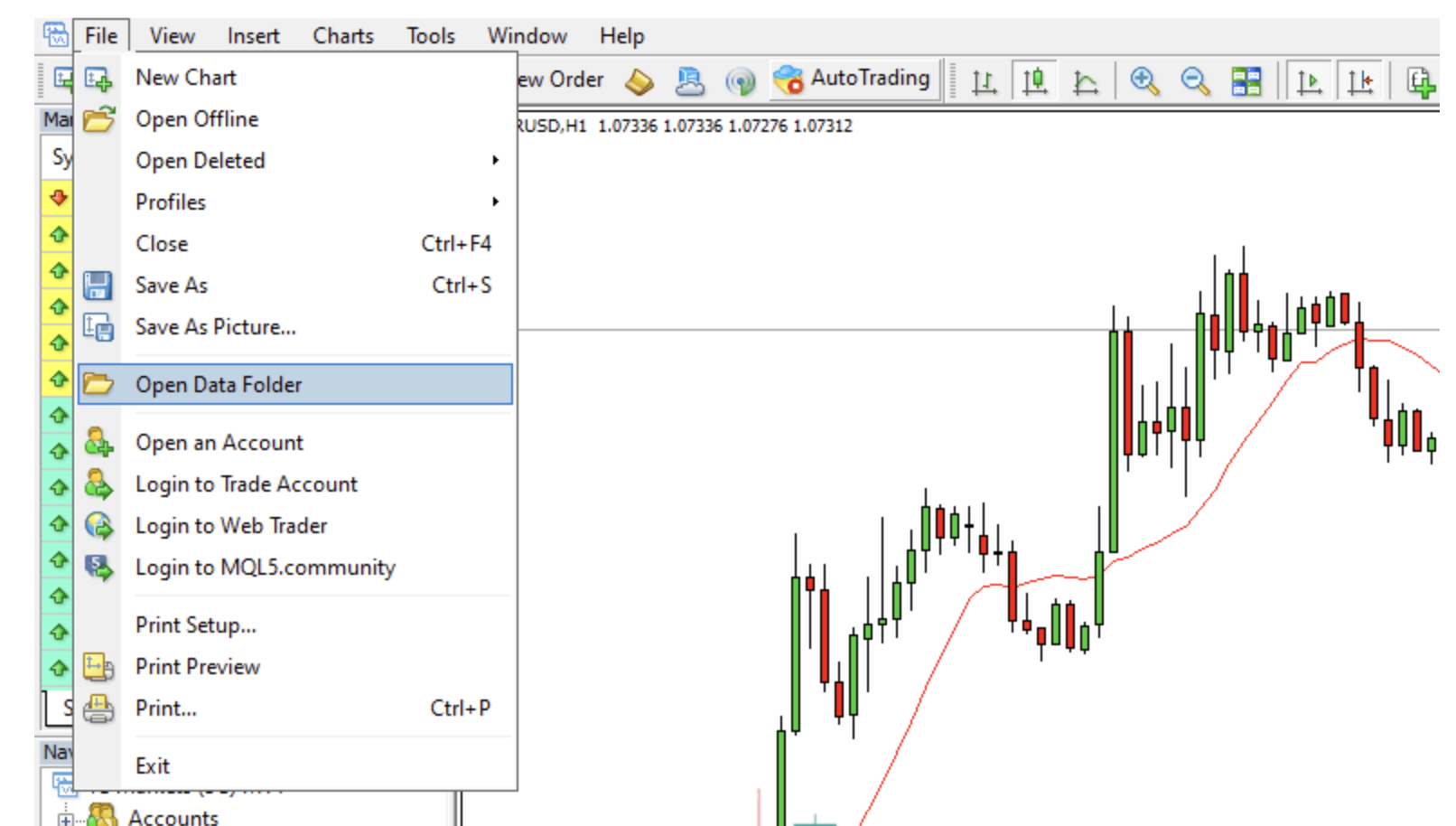
Step 2: Copy the EA file to the correct location
A folder window will appear; access the following path: 👉 MQL4 -> Experts
Action: Copy your EA file (with the extension .ex4 or .mq4) and paste it into this Experts folder.
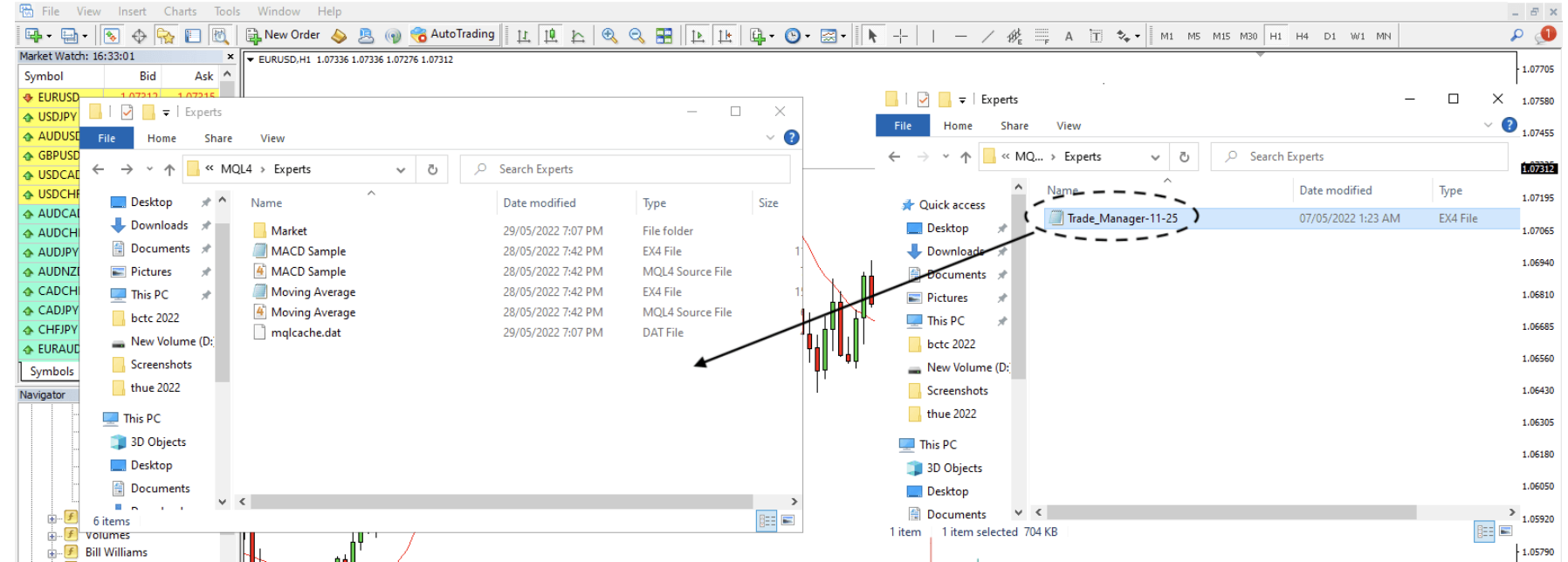
Step 3: Refresh the MT4 interface
- Return to the MT4 software interface.
- Look at the Navigator column (usually on the left).
- Find the Expert Advisors section, right-click and select Refresh.
- The name of the bot you just pasted will now appear in the list.
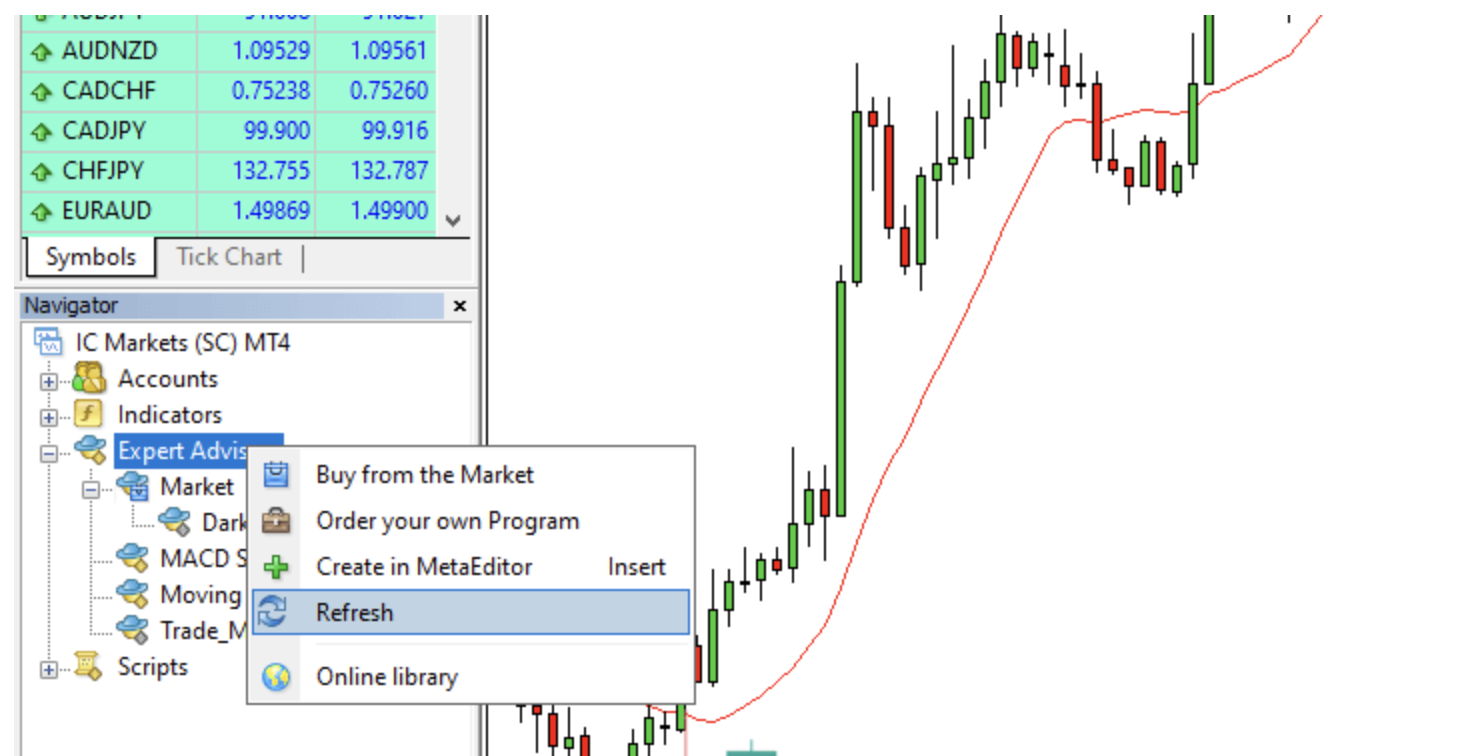
Step 4: Activate Trading Permissions (Most Important)
Many traders skip this step, causing the bot to fail to run.
- On the toolbar, find the Auto Trading button and click it until it turns green (Play icon).
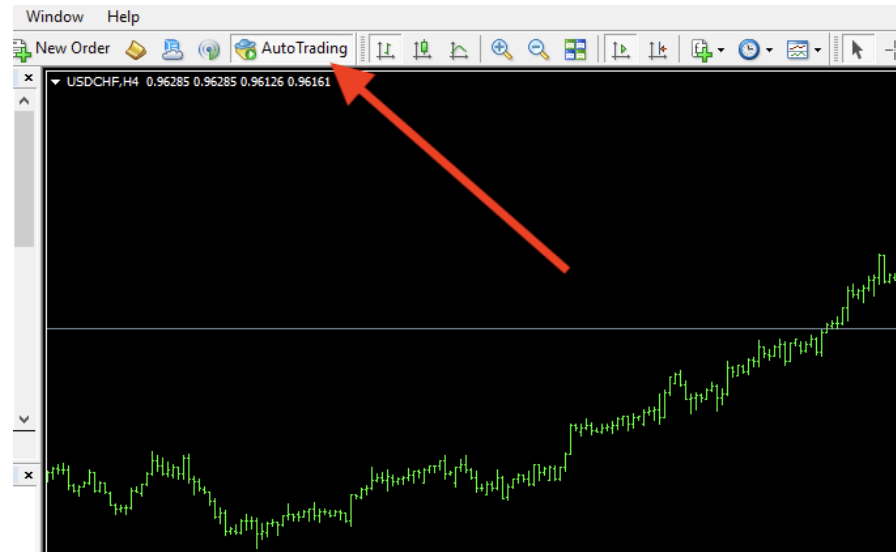
Step 5: Drag and drop the Bot onto the chart.
- Open the chart of the currency pair you want to trade (e.g., XAUUSD or EURUSD).
- From the Navigator column, drag and drop the EA name into the center of the chart.
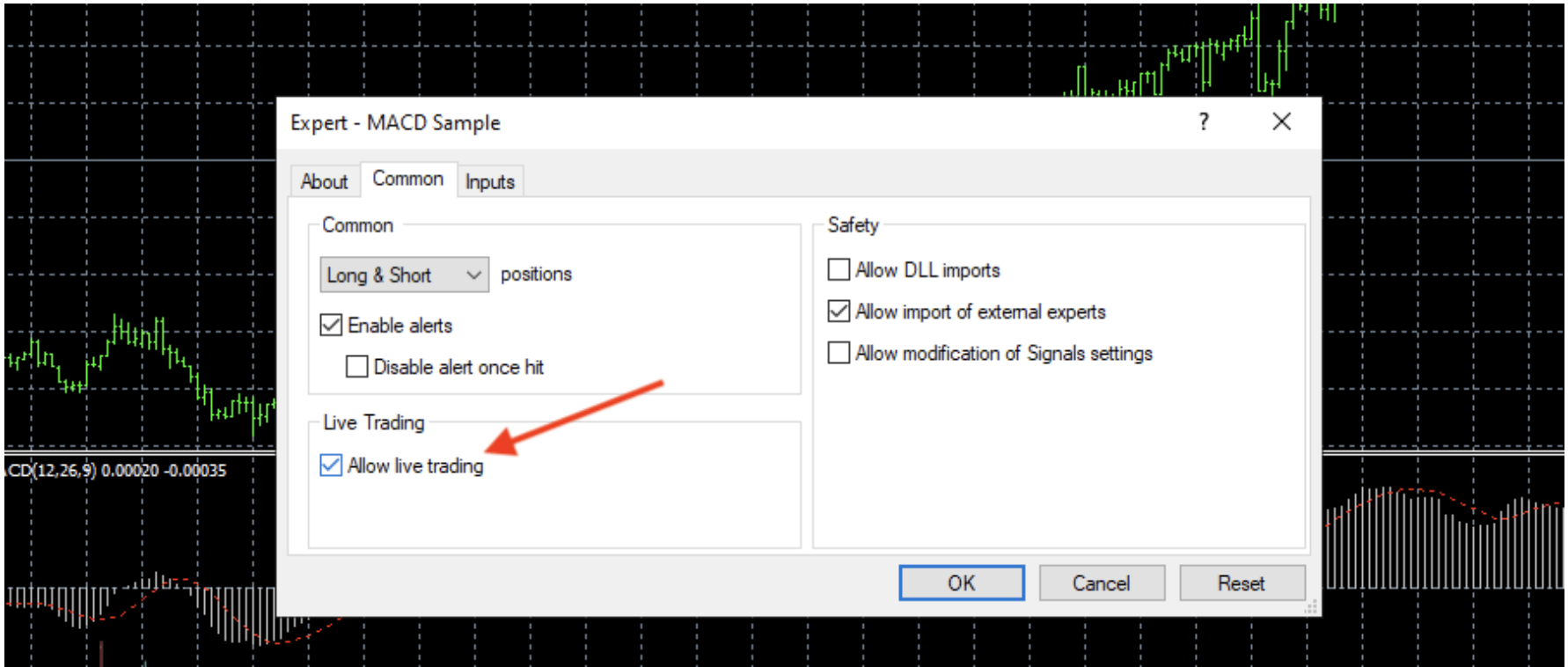
- A parameters panel will appear; pay attention to two tabs:
- Common tab: Check the boxes “Allow live trading” and “Allow DLL imports”.
- Inputs tab: Fill in the capital management parameters (Lot size, Max spread, etc.) according to the bot’s instructions.
- Click OK.
4. Signs that you have successfully installed the EA
After clicking OK, look at the top right corner of the chart:
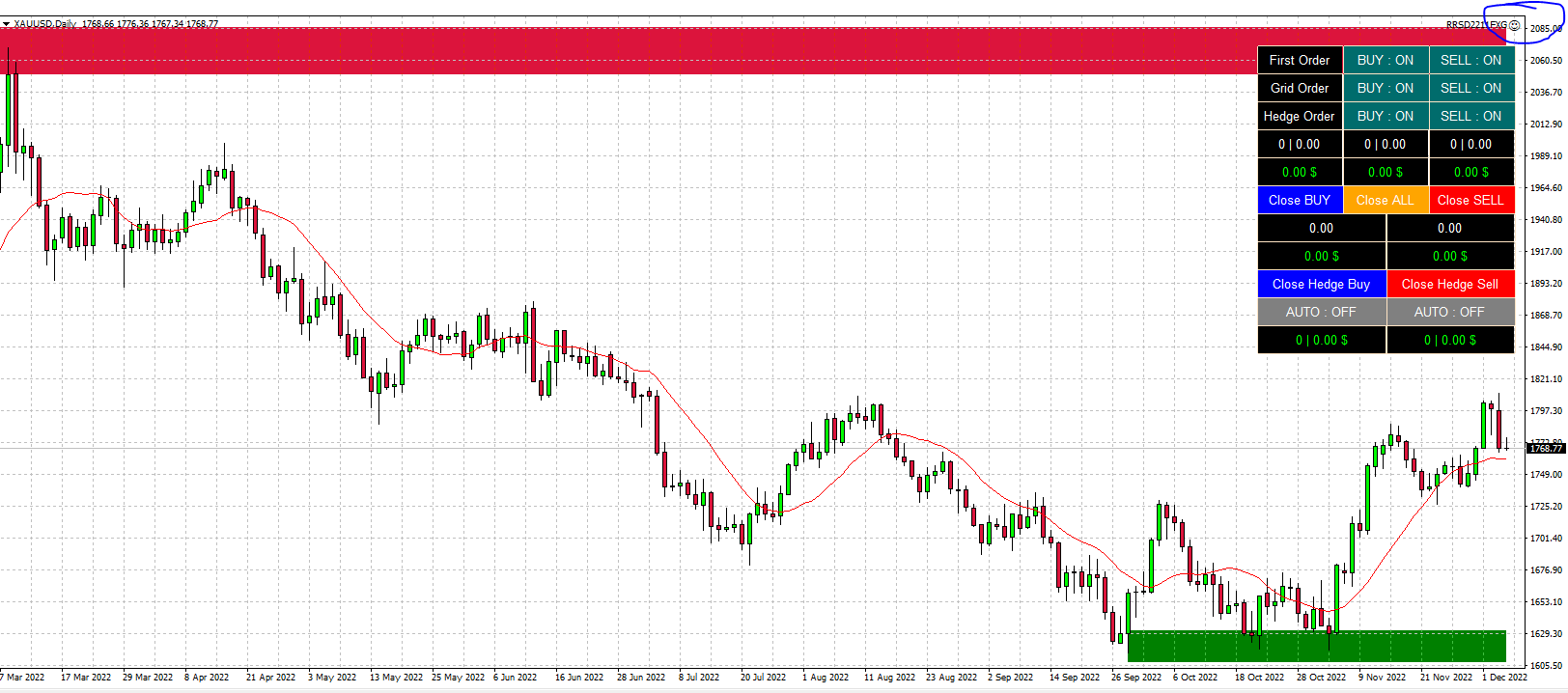
- 🙂 Smiley Face: Congratulations! You have successfully installed and the bot is working.
- ☹️ Sad Face: The bot is malfunctioning or has not been granted permission.
Even though the bot runs autonomously, you still need to understand the Take Profit and Stop Loss mechanisms on MT4 to monitor whether the bot is operating according to the strategy.
How to handle the “Sad Face”:
- Check if the Auto Trading button is green.
- Press F7, check if the Common tab has “Allow live trading” checked.
For the bot to run smoothly, you need a properly installed MT4 platform. Refer to the MT4 beginner’s guide for instructions on using MT4.
5. “Real-World” Advice from Wemastertrade
Knowing how to install an EA in MT4 is simple, but earning and keeping money requires the mindset of a professional investor.
- Backtesting is mandatory: Before running the bot with real money, use the Strategy Tester function on MT4 to test the bot’s effectiveness on past data. Don’t believe the advertisements, believe the data.
- Capital management: The robot may experience losing streaks. Set a small order volume, appropriate to your capital, so that your account can withstand fluctuations (drawdowns).
- Avoid unnecessary intervention: Once you’ve entrusted your MT4 Expert Advisor to your trading, limit manual intervention (closing orders manually) unless there’s major news or a technical error, as this will distort the bot’s algorithm.
We hope this article has provided you with a clear and accurate understanding of how to install an EA in MT4. Automated trading is an inevitable trend, but remember: the Robot is only a tool; your management strategy and discipline are the true keys to success.
If you need support with trading tools or are looking for vetted, high-quality EAs, don’t hesitate to connect with the Wemastertrade team. We wish you a successful installation and effective trading!