












How to use MetaTrader 4 — MetaTrader 4 (MT4) is considered a “legend” in the financial investment world. Whether you trade Forex, Gold (XAUUSD), or CFD Stocks, mastering MT4 is the first mandatory step.
This article will guide you through the most detailed MT4 usage instruction, helping you go from knowing nothing to confidently placing a trade order after just 5 minutes of reading.
See more:
- What is Interest Rate Forex? Understanding Interest Rates in Trading
- What is Drawdown Index? How to Understand to Control Trading Risk
- High-Risk Prop Firm Trading: Big Opportunities Come with Big Challenges
1. What is MetaTrader 4 (MT4)? Why should traders use it?
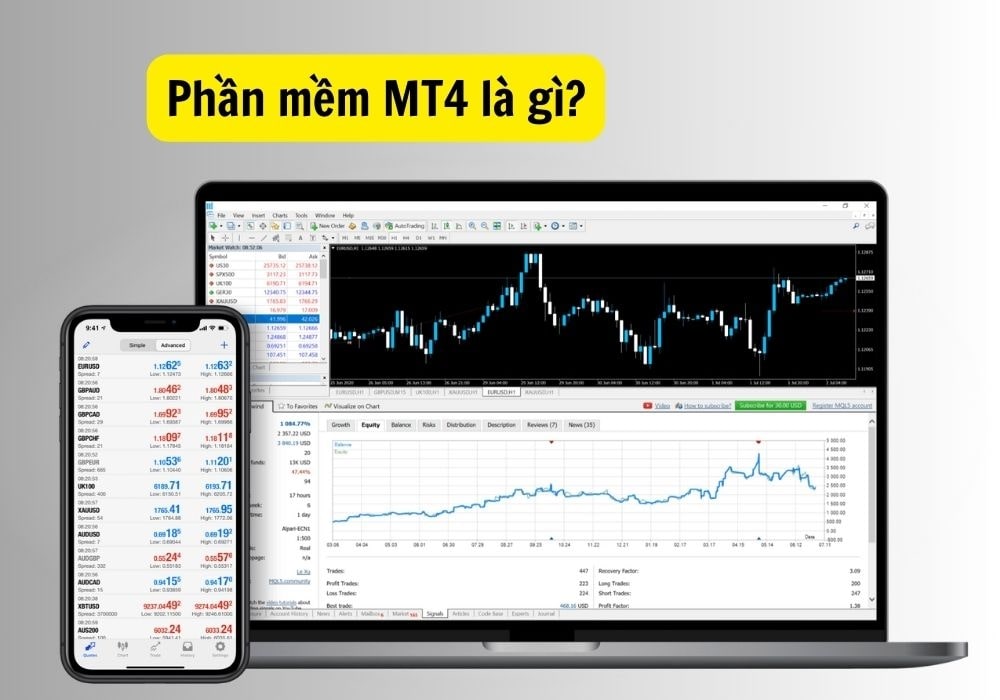
What is MetaTrader 4 (MT4)?
Before getting into the details of how to use MetaTrader 4, you need to understand that this is the platform connecting you and the market.
- Advantages: Lightweight, stable, supports thousands of indicators and trading robots (EA).
- Popular: Most reputable brokers worldwide provide MT4.
2. How to download and log in to MT4 correctly
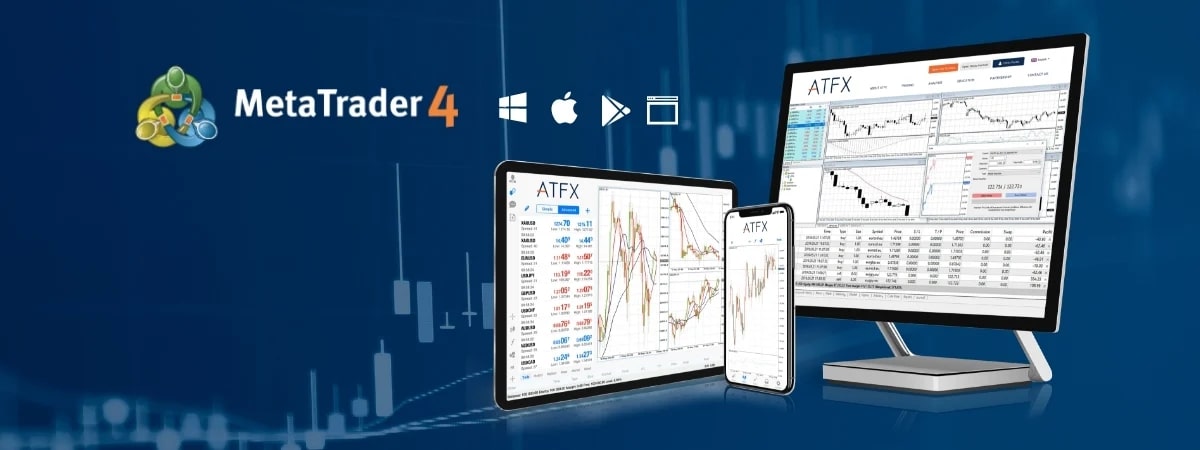
Many beginners often download the wrong version. To ensure proper server connection, follow these steps:
Step 1: Download the software
Do not download from the MetaQuotes homepage. Visit the website of the Broker where you opened your account and find the “Download Platform” or “Download MT4” section.
Step 2: Log in to your account
After installation, open the software and do the following:
- Choose File in the upper left corner -> Login to Trade Account.
- Enter the information sent by the broker to your email:
- Login: Account number (ID).
- Password: Trading password (Master Password).
- Server: Select the correct server name (Very important).
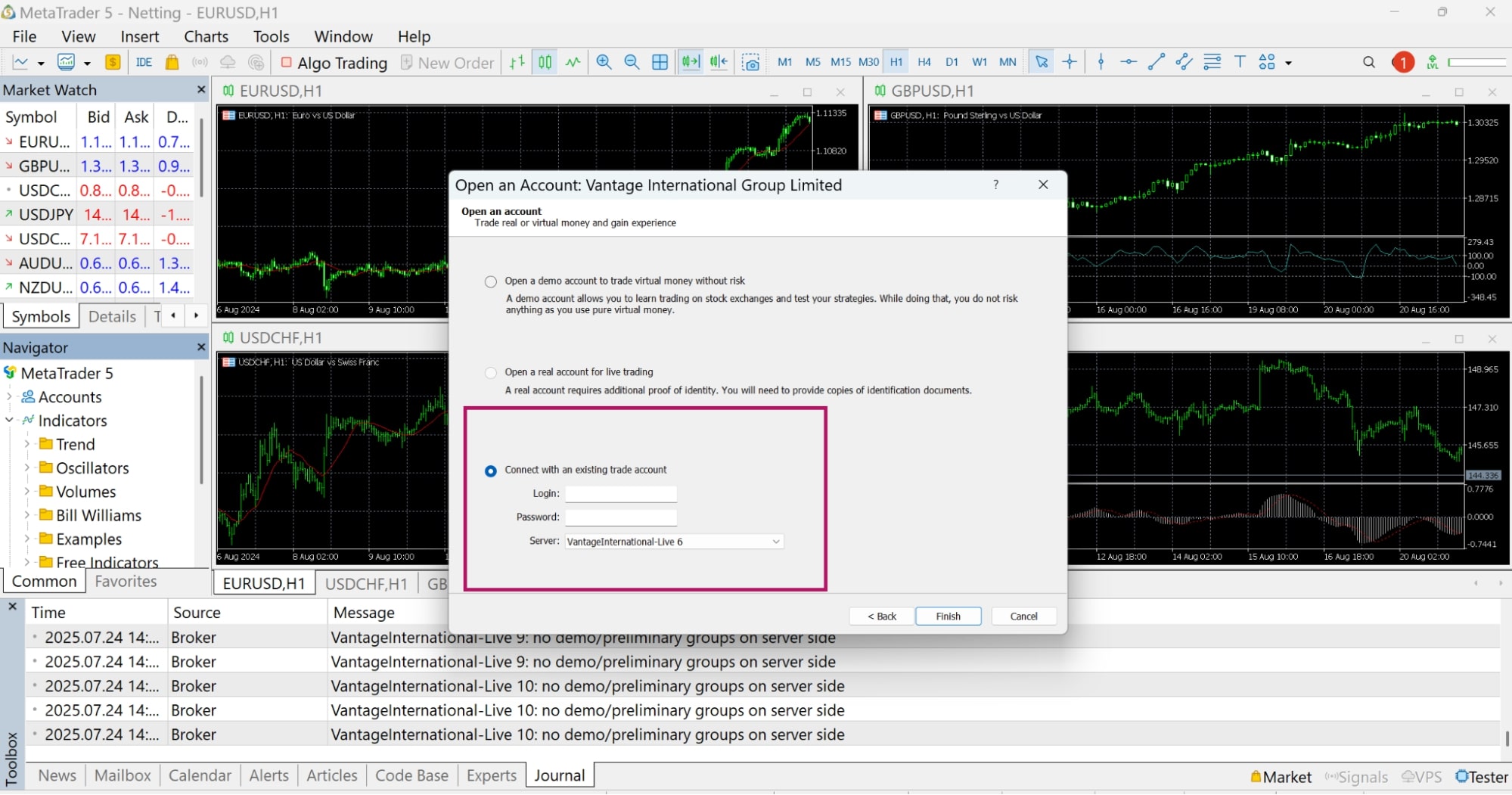
Login to the account
Note: If you are a beginner, start with a DEMO account to practice skills without worrying about losing real money.
3. Get familiar with the MT4 interface on desktop
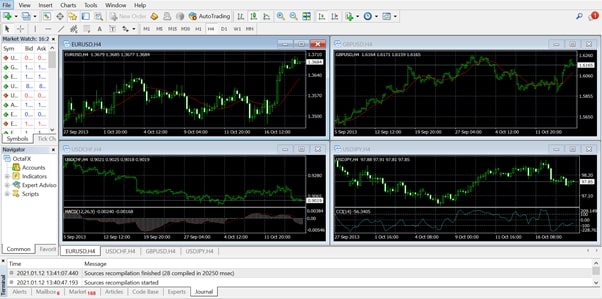
The MT4 interface may look confusing at first. You only need to focus on the 4 main areas below to master how to use MT4:
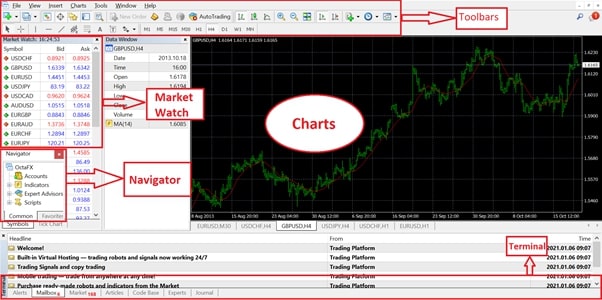
Get familiar with the MT4 interface
- Market Watch: Located on the left, displaying currency pairs and current Bid/Ask prices. Press Ctrl + M to hide/show.
- Navigator: Located below Market Watch, used to manage accounts and add technical indicators. Press Ctrl + N to hide/show.
- Chart Window: The largest area in the middle, displaying price movements.
- Terminal: Located at the bottom, the most important place to view Balance and manage running orders. Press Ctrl + T to hide/show.
4. Set up clean and clear candlestick charts (Clean Chart)
By default, MT4’s dark background is difficult to analyze. Set it up to a professional interface like Pro Traders:
- Switch to Japanese candlesticks: Press Alt + 2 or select the candlestick icon on the toolbar.
- Adjust colors: Press F8 (or right-click -> Properties). In the Colors tab, choose Scheme: Black on White.
- Adjust Bull Candle: Green/Blue.
- Adjust Bear Candle: Red.
- Timeframe: Choose M15, H1, H4, or D1 on the toolbar to view charts by minutes, hours, or days.
5. Instructions for placing Buy/Sell orders on MT4
This is the most important part of the MT4 user guide. To enter an order, press F9 or double-click the currency pair.
Instructions for placing Buy/Sell orders on MT4
Required fields in the order panel:
- Symbol: Trading pair (e.g., EURUSD, XAUUSD).
- Volume: Measured in Lots. Beginners should trade small (0.01 – 0.05 lot).
- Stop Loss: Price level that automatically closes the order to protect capital when the market moves against you. Must have.
- Take Profit: Price level that automatically closes the order to realize profit.
Two types of orders:
- Market Execution: Executes immediately at the current price.
- Pending Order: Executes only when price reaches your preset level (Buy Limit, Sell Limit, etc.).
After filling in the details, click BUY (if expecting price to rise) or SELL (if expecting price to fall).
6. How to close orders and view trading history
When your order is running, manage it in the Terminal at the bottom.
- To close an order manually: Click the “x” next to the Profit column, or right-click the order and select Close Order.
- View history: Switch to the Account History tab to see profit/loss summaries by day/month.
7. Frequently Asked Questions (FAQ) about MT4
Which is better, MT4 or MT5? MT4 is best suited for Forex trading with massive support tools and great stability. MT5 is a newer version that supports stock trading better. For beginners, MT4 is still the No.1 choice.
Is using MT4 free? MT4 software is completely free. You only pay Spread or Commission to the broker when placing trades.
What if I forget my MT4 password? You cannot retrieve the password directly on the software. Log in to your account management page on the Broker’s website to change (Reset Password).
See more: