





How to Use and Customize MT4 Charts : Setting Up Your Interface Like a Funded Trader

Last updated: 31/12/2025

When first installing MetaTrader 4, 90% of new users are overwhelmed by the default interface: a pitch-black background, a cluttered green grid, and hard-to-read price bars.

At WeMasterTrade, we always remind our capital-funded traders: “A cool head needs a clean chart.” A cluttered chart will easily distract you (Analysis Paralysis) and lead to wrong decisions.

This article will guide you on how to set up a professional MT4 chart and the secrets to customizing charts in MT4 to optimize your Price Action analysis.

1. Choose the right chart type (Chart Mode)
Choose the right chart type

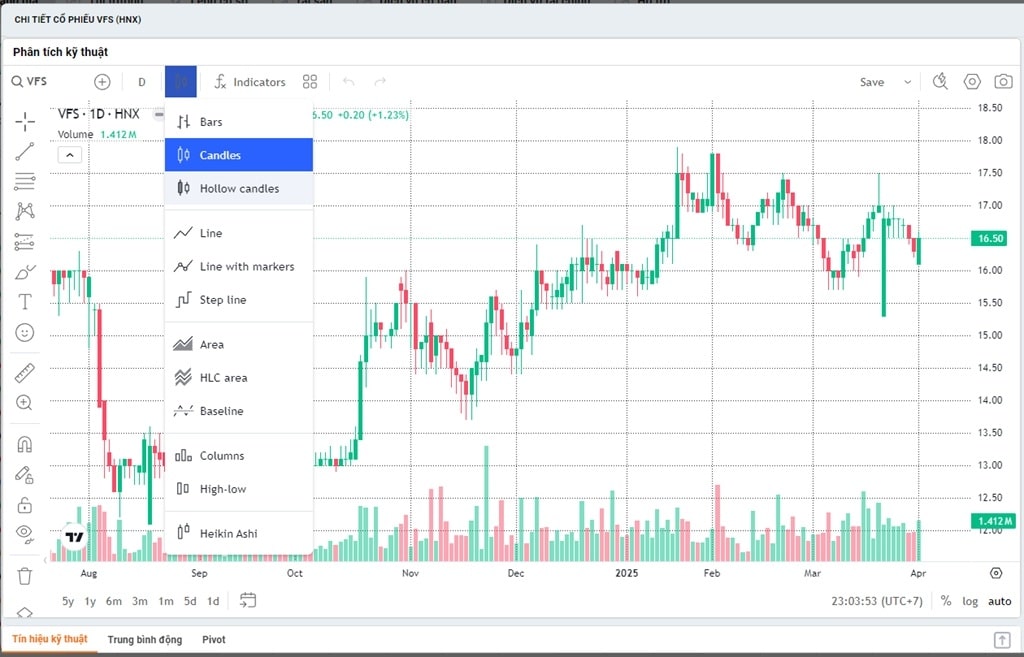
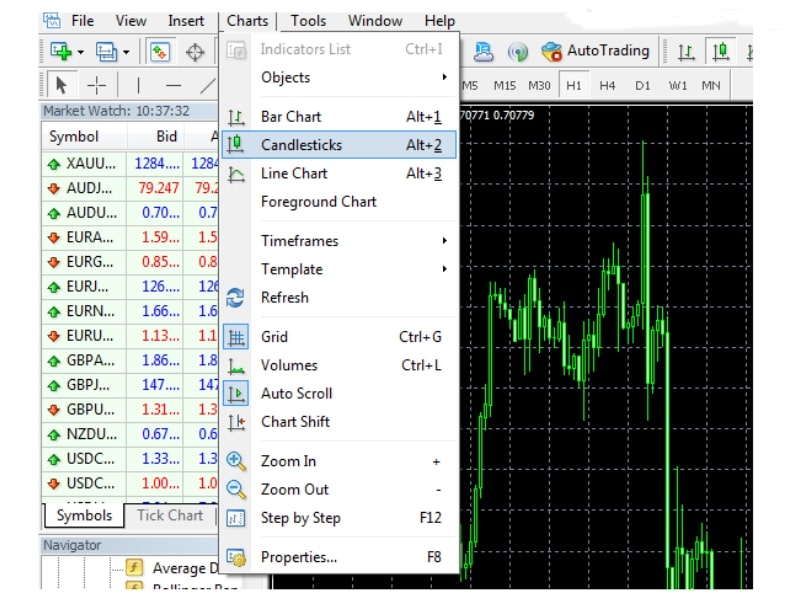
MT4 offers three types of price charts (located on the toolbar or via keyboard shortcuts):

  1. Bar Chart (Bar – Alt+1): Quite difficult to read for beginners.
  2. Line Chart (Line – Alt+3): Only connects closing prices, suitable for seeing the general trend but lacks detail.
  3. Candlesticks (Japanese Candlesticks – Alt+2): This is the “holy grail” of every professional trader.

Recommendation: Always keep it in Candlestick mode. Japanese candlesticks clearly show you the four important price levels (Open, Close, Highest, Lowest) and market sentiment (Which side is winning, buyers or sellers?).

2. Guide to “Cleaning Up” and Customizing Charts in MT4
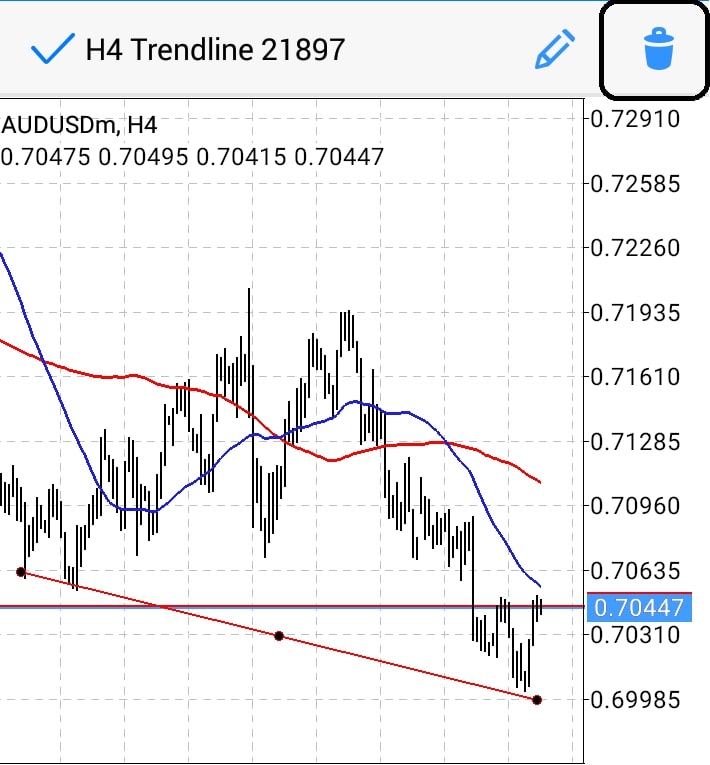
Guide to Cleaning Up and Customizing Charts in MT4

Transform the default black screen into a bright, easy-to-read interface by following these steps:

Step 1: Open the Properties panel

Right-click in the middle of the chart → Select Properties (or press F8).

Step 2: Turn off distracting elements (Common Tab)

  • Switch to the Common tab.
  • Uncheck the Show Grid box (or press Ctrl + G outside): Turn off the grid for a cleaner chart.
  • Check the box “Show period separators“: This displays vertical lines separating trading days/weeks (very important to know when the Asian/European/American session starts).
  • Check the box “Show Ask line“: This displays the buy price line (helps you see how the spread expands).

Step 3: Redesign the colors (Colors Tab)

This is where you customize the MT4 chart to your personal style.

  • Suggested color scheme: “Black on White” (White background – Black text): Easy on the eyes, similar to TradingView.
    • Background: White.
    • Foreground: Black (Black – the color of the numbers on the margin).
    • Bar Up: Green or Black (Bullish candle border).
    • Bar Down: Red or Black (Bearish candle border).
    • Bull Candle: Green or White (Bullish candle body).
    • Bear Candle: Red (Bearish candle body).

After making the adjustments, click OK. You will see a dramatic difference.

3. Essential Chart Navigation Tools You Must Know
Essential Chart Navigation Tools You Must Know

To make the MT4 chart best serve your analysis, you need to master 3 functional buttons on the toolbar:

  1. Auto Scroll: Green arrow icon. When enabled, the chart will automatically jump to the current candle whenever a new price appears.
    • Tip: Turn this button off when you want to scroll back to the past to [Backtest trading strategies].
  2. Chart Shift: Red arrow icon. Creates a space on the right side of the screen.
    • Effect: Prevents candles from being pressed against the right edge, providing space to draw future projections or clearly see [Technical Indicators].
  3. Timeframes: From M1 (1 minute) to MN (1 month.
    • WeMasterTrade Mindset: Always analyze multiple timeframes. Look for trends on H4/D1, find entry points on M15/H1.

4. Save Template – Do it once, use it forever
Save Template – Do it once use it forever

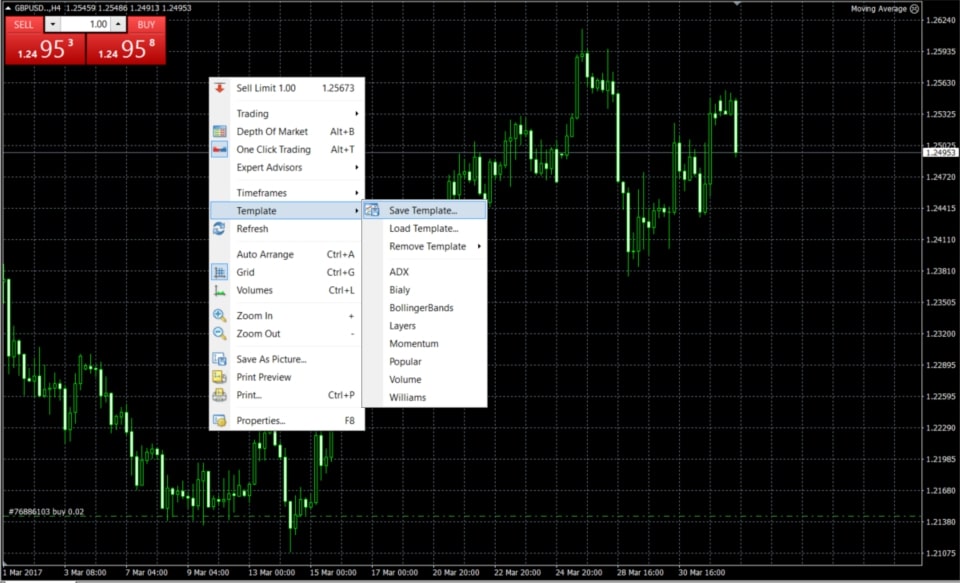
You cannot manually adjust the colors for every single currency pair every time you open a new chart. Use the Template feature:

  1. After adjusting colors and adding your desired indicators.
  2. Right-click on the chart → TemplateSave Template.
  3. Name it (Example: “WMT_Clean”).
  4. Next time you open a new pair (e.g., EURUSD), just Right-click → Template → Select “WMT_Clean”. All setups will appear in 1 second.

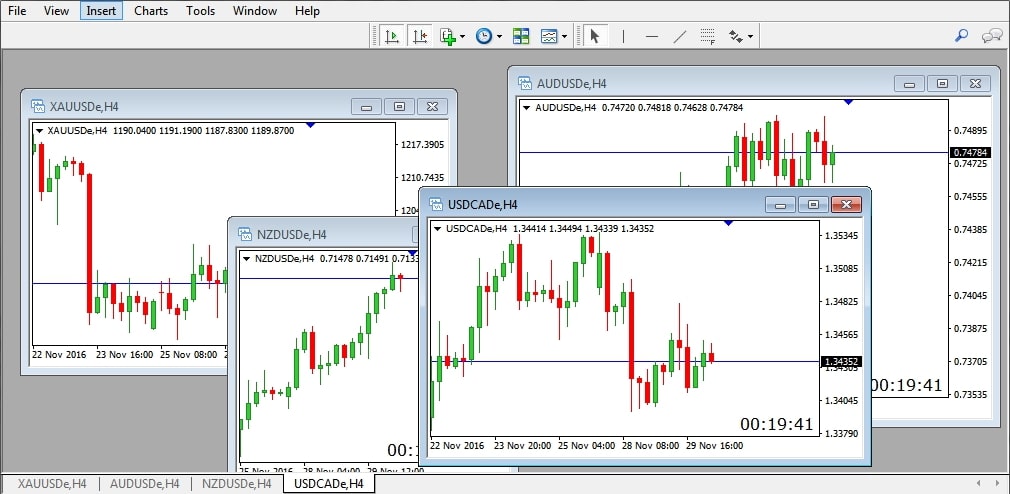
5. Arrange Multiple Frames (Tile Windows)
Arrange Multiple Frames Tile Windows

Fund traders often need to observe many currency pairs at once.

  • Open 4 charts of 4 different currency pairs.
  • On the Menu bar, select WindowTile Windows (or press Alt + R).
  • MT4 will automatically divide the screen into 4 equal squares, helping you oversee the entire market.

Mastering the MT4 chart and knowing how to customize the chart in MT4 not only helps reduce eye strain but also demonstrates your seriousness toward the Trading profession. A professional workspace leads to wise entry decisions.

Related articles to read for a complete setup:

Join Our
Trading Team!

Star Star Star Star Star Transparency Partner FXVERIFY

Clients are provided with an account containing virtual funds as part of our funded trading model. Their trading activity on the virtual account is replicated in real-time by our exclusive algorithms to our live firm trading account, generating actual cash flow.

Hypothetical Performance Closure

Hypothetical performance results have many inherent limitations, some of which are described below. No representation is made that any account will likely achieve performance-based rewards or losses similar to those shown. There are frequently sharp differences between hypothetical performance results and the actual results subsequently achieved by any particular trading program. One of the limitations of hypothetical performance results is that they are generally prepared with the benefit of hindsight. In addition, hypothetical trading does not involve financial risk, and no hypothetical trading record can completely account for the impact of financial risk on actual trading. For example, the ability to withstand losses or to adhere to a particular trading program despite trading losses is a material point, which can also adversely affect actual trading results. There are numerous other factors related to the markets in general or to the implementation of any specific trading program, which cannot be fully accounted for in the preparation of hypothetical performance results, and all of which can adversely affect trading results. Testimonials appearing on this website may not represent other clients or customers and are not a guarantee of future performance or success.

Hypothetical Performance Disclosure – CFTC Rule 4.41

Simulated or hypothetical trading results have inherent limitations. Unlike actual performance records, they do not represent real trading activity and may be designed with the benefit of hindsight. No representation is being made that any account will, or is likely to, achieve profits or losses similar to those shown or implied.

Risk Disclosure

This is not an investment opportunity. You do not deposit any funds for investment. We do not ask for any funds for investment. At no time do you risk your own capital. There are no promises of rewards or returns. Trading contains substantial risk and is not for every investor. An investor could lose all or more than the initial investment. Risk capital is money that can be lost without jeopardizing one's financial security or lifestyle. Only risk capital should be used for trading, and only those with sufficient risk capital should consider trading. Past performance is not necessarily indicative of future results.

Customer Compensate Disclosure

All trades presented for customer compensation should be considered hypothetical and should not be expected to be replicated in a simulated trading environment. All accounts in the WeMasterTrade program may represent simulated trading accounts. Payments are collected and facilitated by Wecopy Fintech LTD (Company Number: 14905703), 71-75 Shelton Street, Covent Garden, London, United Kingdom, WC2H 9JQ, acting as a Payment Agent on behalf of WeMasterTrade, with the applicable entity determined based on the user’s location and selected payment method.

Complaint Resolution Process

If you believe you are entitled to compensation due to a platform error or system malfunction, please contact support@wemastertrade.com within 7 days of the incident. Our team will review and respond within 5 business days. If the complaint is valid, compensation will be processed within 14 business days.

Compensation is limited to the value of the service fee paid for the affected account. WeMasterTrade is not liable for losses resulting from market conditions, user error, or third-party service interruptions.

Restricted Countries

WeMasterTrade does not provide trading accounts service to residents of the Vietnam, Israel, Russia, North Korea, Iran and some other countries.

Metatrader 5 platform does not provide trading accounts service to residents of the Vietnam, USA, Canada, Israel, Russia, North Korea, Iran and some other countries.

Chat
Complaint & Review Form