













MetaTrader 5 (MT5) is a leading trading platform trusted by millions of traders worldwide. This article provides a step-by-step guide on how to install MT5 on Windows, Mac, Android, and iOS devices with a simple, fast process that takes only a few minutes. You will learn how to download the official installation file, perform safe setup steps, and log in to your trading account to start analyzing the markets immediately.
What Is MT5?
MetaTrader 5 is a next-generation trading software developed by MetaQuotes Software, offering professional technical analysis tools for Forex, stocks, and commodities. The platform supports multiple devices, including Windows PCs, MacOS computers, and Android/iOS mobile phones, allowing traders to trade anytime, anywhere. MT5 comes with powerful features such as advanced charting, a wide range of technical indicators, and automated trading through Expert Advisors.
Preparation Before Installing MT5
Before starting the MetaTrader 5 installation process, make sure you have the necessary information and meet the basic requirements. First, ensure your device meets the minimum specifications: Windows 7 or later, or MacOS 10.10 or later, at least 2GB of RAM, and around 500MB of free disk space.
Next, you need a trading account from a reputable broker or other licensed brokerage. Login information—including account number, password, and server name—will be provided by the broker via email after your registration is successful.
How to Install MT5 on Windows
Step 1: Download the MT5 Installation File
Visit the official website of your broker or the MetaQuotes website to download the MT5 installation file for Windows. The downloaded file is usually named mt5setup.exe or includes the broker’s name.
Step 2: Launch the Installer
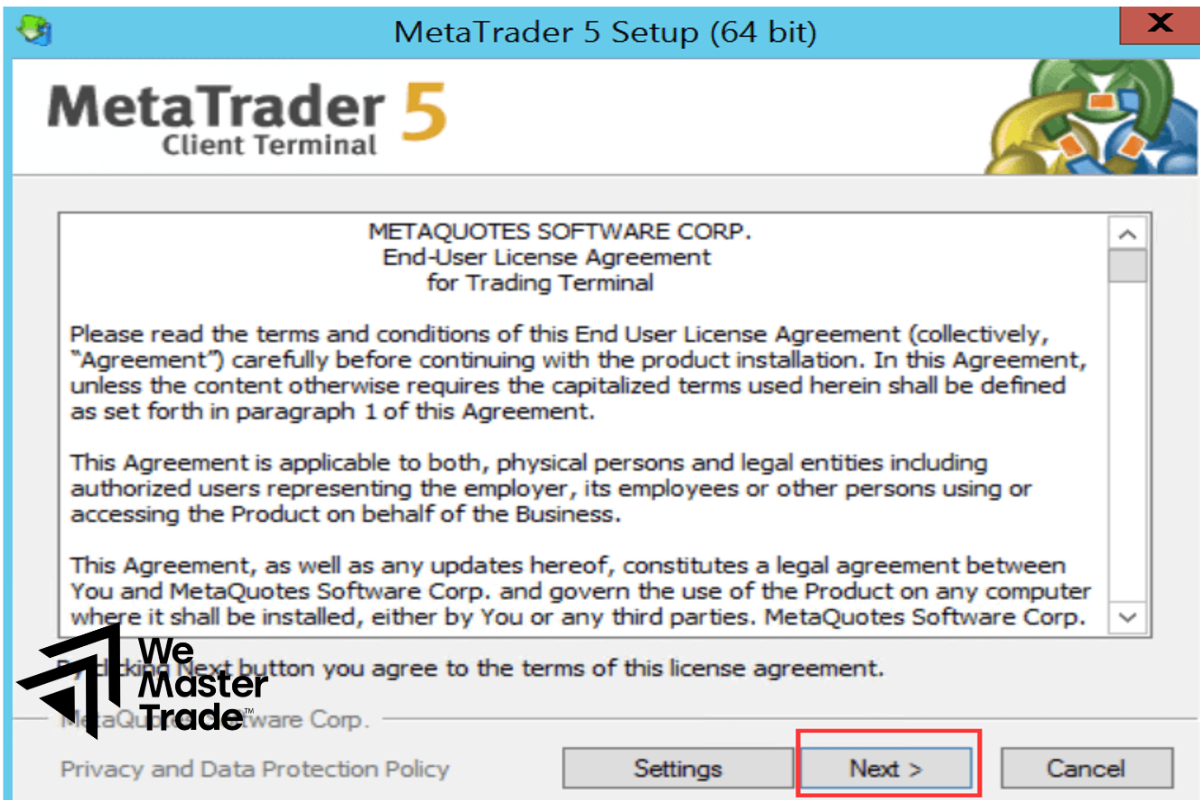
Once the download is complete, locate the .exe file in your Downloads folder and double-click it to run. Windows may ask for administrator permission—choose Yes or Run. The installation window will appear with a welcome message to MetaTrader 5.
Step 3: Select the Installation Folder
The installer will suggest a default directory such as C:\Program Files\MetaTrader 5 or C:\Program Files (x86)\MetaTrader 5. If you want to change the location, click Settings and choose another folder. Then click Next to continue. The software will automatically extract and install necessary files.
Step 4: Complete the Installation
When the installation is finished, the “Launch MetaTrader 5” checkbox will be selected by default. Keep this option enabled and click Finish to open MT5 immediately, or uncheck it if you prefer to launch the program later from the Desktop icon. The MetaTrader 5 icon will appear on your Desktop and in the Windows Start menu.
Logging In to Your MT5 Trading Account
First-Time Login
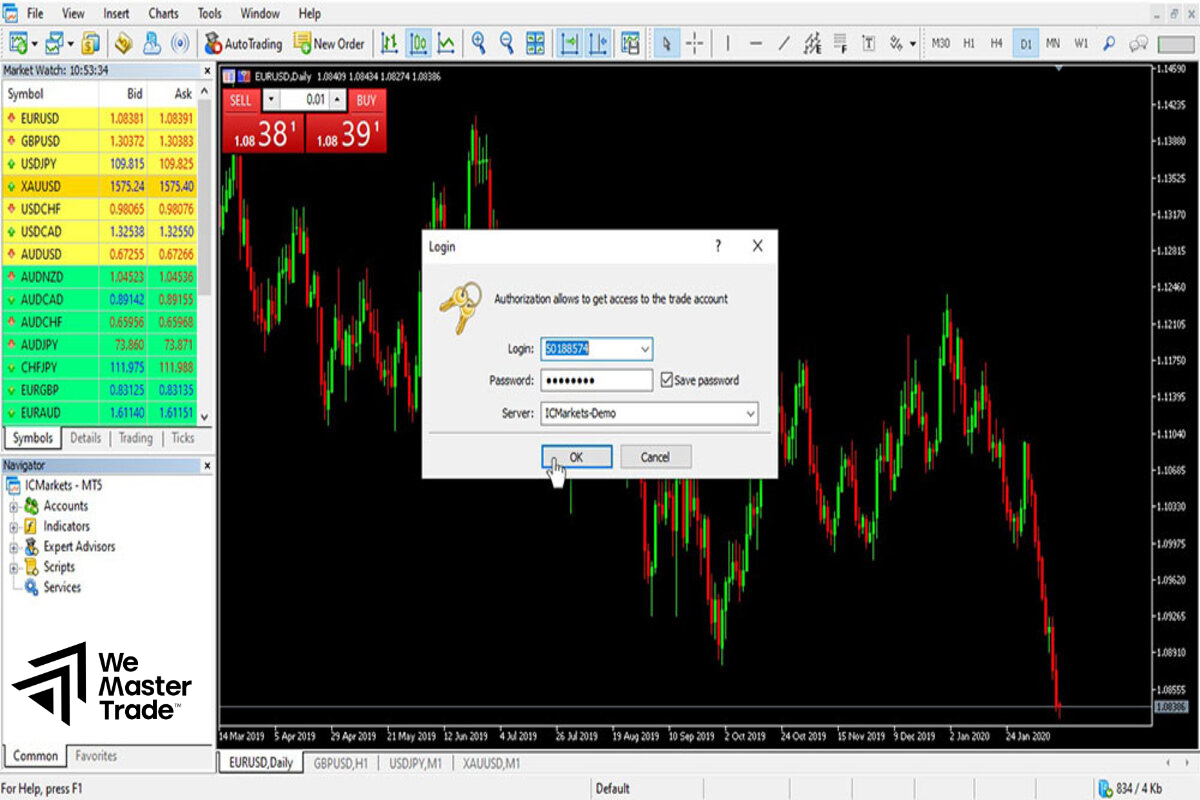
When opening MT5 for the first time, the login window will appear automatically. Enter your account number (Login), password, and select the appropriate server from the dropdown list based on the information provided by your broker. If the login window does not appear, click the File menu in the upper-left corner and select Login to Trade Account.
Verify the Connection
After entering your information and clicking Login, check the lower-right corner of the platform. If you see a ping value (e.g., 50ms) and a green connection icon, your login is successful. If you see messages such as “Invalid Account” or “No Connection,” check your login details and internet connection.
How to Install MT5 on MacOS
MacOS users can download MetaTrader 5 directly from the broker’s website or the App Store. The Mac installer comes in a .dmg file—simply drag and drop the MT5 icon into the Applications folder to install.
The login process on Mac is identical to Windows, using the same account details and server information provided by your broker.
Installing MT5 on Mobile Devices
Install MT5 on Android
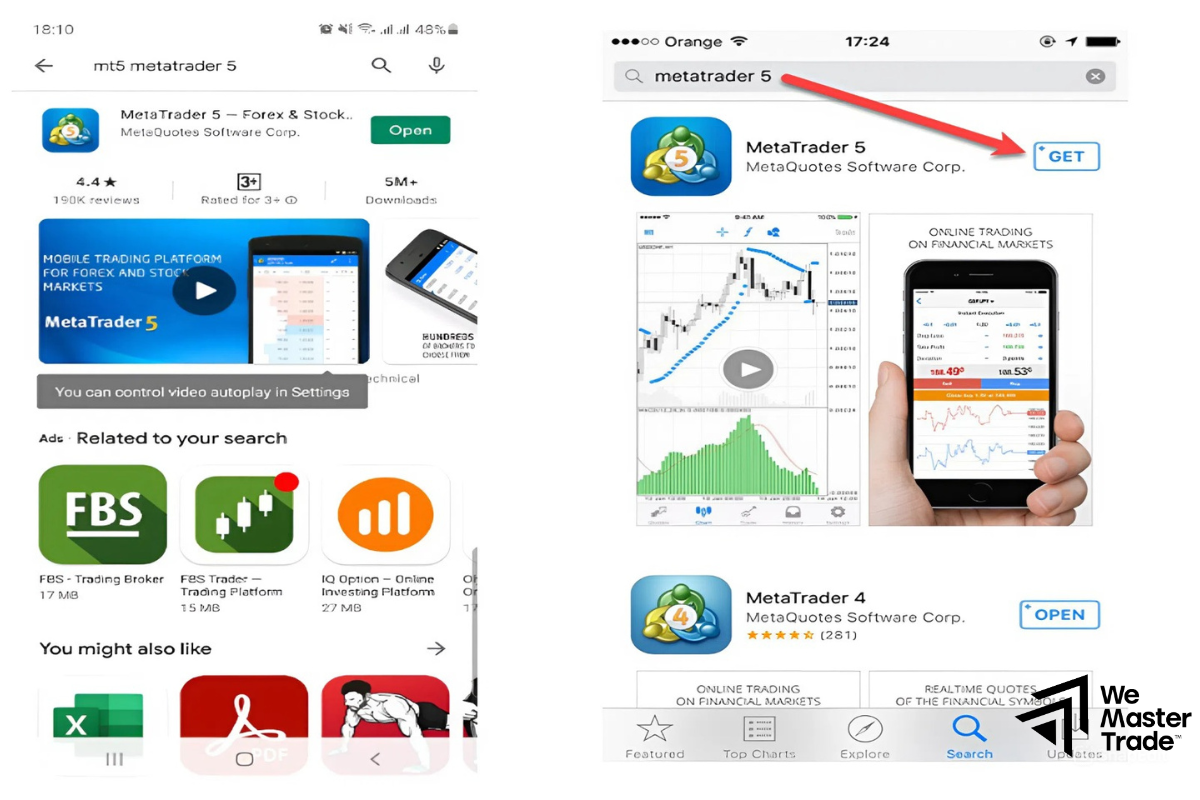
Open the Google Play Store on your Android device, search for “MetaTrader 5”, and select the official app by MetaQuotes Software Corp. Tap Install to download and automatically install the app (typically 50–100MB). After installation, open the app and log in using your trading account details.
Install MT5 on iOS
iPhone or iPad users can go to the App Store, search for “MetaTrader 5”, and download the official app. The installation will start automatically after tapping Get. MT5 Mobile supports full trading functionality, chart viewing, and technical analysis similar to the Windows version.
Installing MT5 on a Forex VPS
A VPS (Virtual Private Server) is an ideal solution for traders using Expert Advisors or needing 24/7 trading. After renting a Forex VPS, connect via Remote Desktop Protocol, download the MT5 installation file directly on the VPS, and follow the same steps as installing on Windows. Benefits of a VPS include stable connectivity, low latency, and the ability to run EAs continuously without interruptions.
Setting Up the MT5 Interface After Installation
Customizing Charts
After logging in, press Ctrl+M to open the Market Watch window, which displays a list of currency pairs and trading instruments. Drag a pair from Market Watch onto the chart area to open a new chart. Change the chart type to Japanese Candlesticks by clicking the candlestick icon on the toolbar.
Adding Technical Indicators
Go to Insert > Indicators to choose technical indicators such as Moving Average, RSI, or MACD. MT5 provides dozens of built-in indicators and supports adding more from the community. You can customize colors, periods, and parameters to match your trading strategy.
Common MT5 Installation Errors and Fixes
If you see an “Installation Failed” message, temporarily disable your antivirus software because some security programs may block the installer. The “Common Files Not Found” error usually occurs due to insufficient admin privileges—run the installer as Administrator. If MT5 cannot connect to the server, check your firewall settings and ensure port 443 is not blocked.
See more:
- Building Competitive Edge in Forex for the Modern Trader
- Understanding Risky Forex Trading and Effective Risk Management
- How to Maintain Trader Discipline for Long-Term Success
- The Attraction of the Dynamic Forex Market for Traders
Start Trading on MT5
After completing the setup, you can begin trading by right-clicking on the chart and selecting “Trading” > “New Order.” The order window will appear, allowing you to choose your trade volume, set Stop Loss and Take Profit levels, and select either Buy or Sell. MT5 also supports various advanced order types such as Buy Limit and Sell Stop to help you manage risks effectively. After reviewing all parameters carefully, click the “Buy” or “Sell” button to execute the trade.
Installing MT5 is completely free and does not require complex technical knowledge. With the detailed guide above, you can confidently install MetaTrader 5 on any device and begin your professional trading journey. Be sure to practice on a demo account before trading with real money to get familiar with the interface and platform features.