













Do you have a potential Forex trading strategy but aren’t ready to risk real money yet? Don’t worry. How to backtest on MT5 is the key to helping you verify your investment effectiveness without risking a single penny. In this article, Wemastertrade will guide you step-by-step through using the powerful Strategy Tester tool of MetaTrader 5 to turn past data into future profits.
1. Why Do Professional Traders Never Skip Backtesting on MT5?
Before diving into the technical details, we need to understand the essence. Backtesting is the process of running a trading strategy or an Expert Advisor (EA) on historical data to see how it performs.
At Wemastertrade, we always advise our participants: “Don’t trust your feelings, trust the data”.
Unlike its predecessor MT4, MetaTrader 5 (MT5) is a superior trading simulator with advantages that MQL5 programmers and traders love:
- Multi-threaded: Maximizes CPU power for faster testing.
- Multi-currency: Backtest multiple currency pairs simultaneously (Portfolio backtesting).
- Real Ticks: Supports real tick data instead of just simulation, increasing accuracy to 99%.
2. Preparation Before Backtesting: Data is King
Backtest results are only as good as the input data. If you use “garbage” data, you will get “garbage” results (“Garbage In, Garbage Out”).
To ensure an effective MT5 backtesting process, follow these steps to prepare your data:
Open MT5, go to the View menu > Symbols (or press Ctrl+U).
Select the currency pair you want to test (e.g., EURUSD), and switch to the Bars or Ticks tab.
Press Request to download Historical Data from the broker’s server.
Wemastertrade Tip: For the most accurate results in scalping strategies, always try to use Tick Data instead of regular M1 candlestick data.
3. Detailed Guide on How to Backtest on MT5 (Step-by-Step)
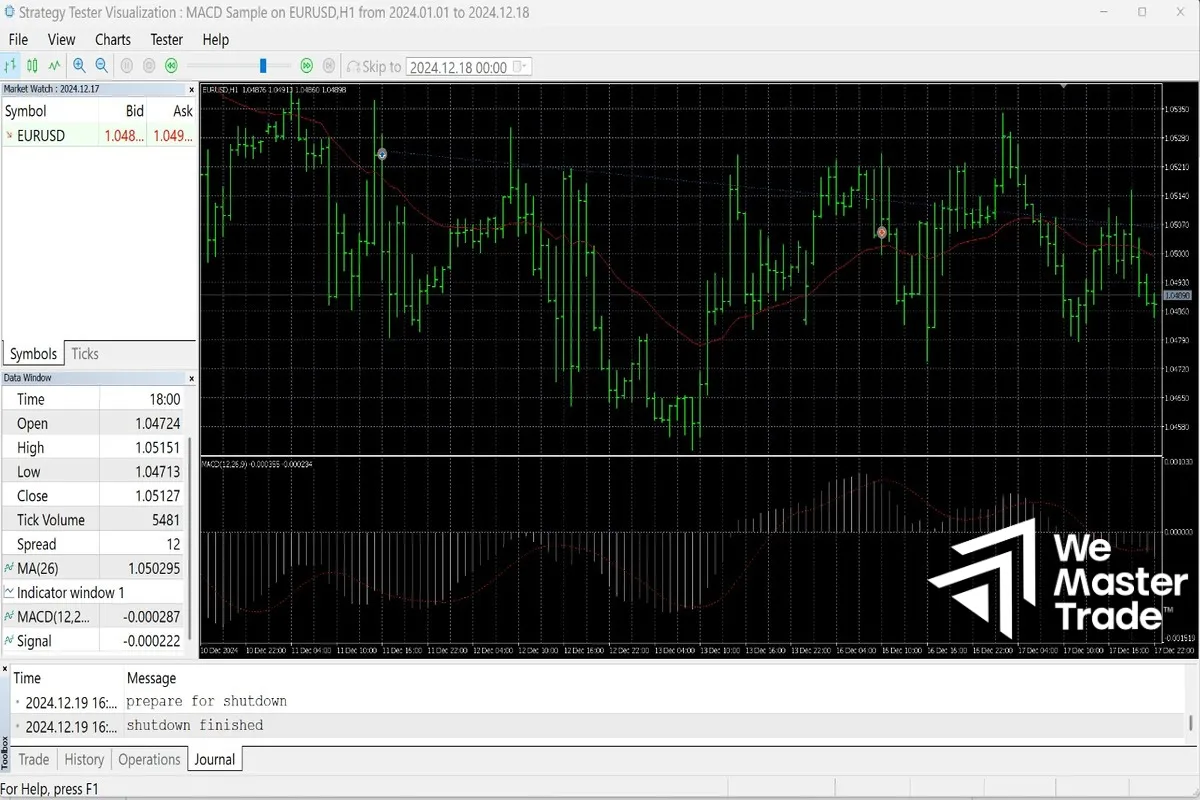
The tool we use is the Strategy Tester. Follow the standard process below:
Step 1: Launch Strategy Tester
In the MT5 interface, press Ctrl + R or go to the View menu > Strategy Tester.
Step 2: Configure Parameters (Settings)
In the Overview or Settings tab, fill in the following important information:
- Expert: Select the Bot (EA) or indicator you want to test.
- Symbol: Choose the currency pair (e.g., XAUUSD, GBPJPY).
- Timeframe: The timeframe the strategy operates on (M15, H1, H4…).
- Date: Select the time range (You should test at least 1-2 years to see market cycles).
- Forward trade: Select “No” if you are just starting (This is for advanced optimization).
- Delays: Select “Zero latency” for an ideal test, or “Random delay” to simulate realistic slippage.
Step 3: Select Modeling Mode (Important)
This part determines the accuracy:
- Every tick based on real ticks: Most accurate, but slowest. Use for price-sensitive EAs.
- Every tick: Simulates ticks based on M1 candles. Good enough for most EAs.
- Open prices only: Only executes trades at the opening price. Fastest, only used for EAs that enter trades when a candle closes.
Step 4: Visual Mode
If you want to see how the bot enters trades on a running chart, check the box Visual mode with the display of charts. This helps you detect EA logic errors with your own eyes.
Step 5: Run and Analyze
Press the Start button and wait for MT5 to process.
See more:
- What is an EA (Trading Robot)? Guide to install EA on MT5
- Detailed MT5 Installation Guide from A–Z (2025) – Complete Instructions
- Top 10 Best Indicators on MT4: The “Survival Toolkit” of Professional Traders
4. How to Read a Backtest Report: Don’t Just Look at Profit
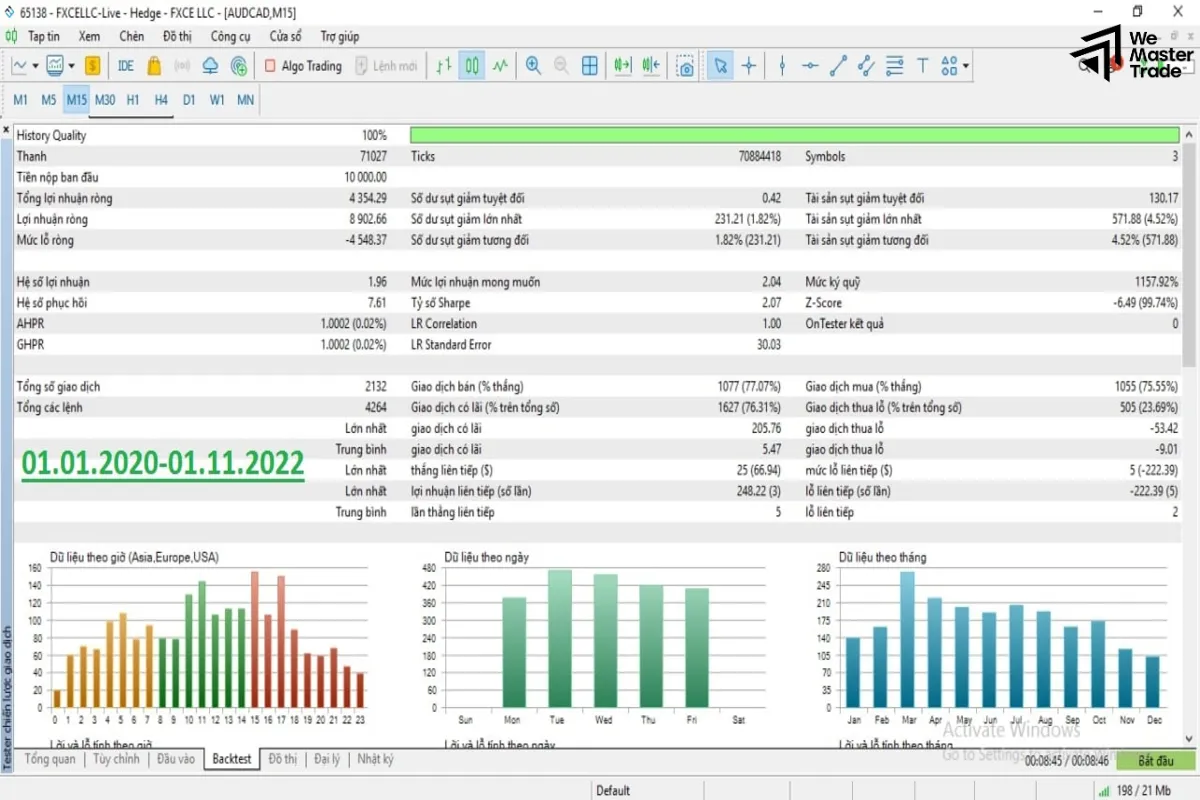
After the process is complete, the Backtest tab will appear. Wemastertrade advises you not to just look at the Total Net Profit. Pay attention to the following key indicators:
Drawdown (DD)
- Meaning: Maximum account loss.
- Advice: Keep it below 20-30%. If DD > 50%, the strategy is too risky.
Profit Factor
- Meaning: Total wins / Total losses.
- Advice: Must be greater than 1.0. Ideally, 1.5 or higher.
Recovery Factor
- Meaning: Ability to recover from losses.
- Advice: The higher the better.
Total Trades
- Meaning: Total number of executed trades.
- Advice: Needs to be large enough (over 100 trades) for the results to be statistically significant.
5. Optimization: Finding the Golden Parameter Set
Another powerful feature is Optimization. Instead of running once, MT5 will run thousands of times with different Input Parameters to find the most profitable set of parameters.
In Strategy Tester, switch the mode from “Single” to “Fast genetic based algorithm”.
Go to the Inputs tab, check the variables you want to change (e.g., Stoploss, TakeProfit).
Click Start and wait for MT5 to scan through the possibilities to find the optimal configuration.
6. Frequently Asked Questions (FAQs)
Below are answers to frequently asked questions from the Wemastertrade community:
How do I enable Visual Mode when backtesting on MT5?
In the Strategy Tester interface, find the “Visual mode with the display of charts” option and check the box next to it. If you don’t see it, expand the Tester window.
Why are my backtest results different from real-world (live trading) results?
The differences usually stem from: Spread volatility, Slippage, the exchange’s order execution speed, and the quality of the historical data you’re using.
Can I backtest an indicator without writing an EA?
Yes, but MT5 only supports viewing indicators running in the past (Visual mode). To automatically track wins/losses, you must know MQL5 programming or hire a coder to convert the indicator into an EA.
What is the difference between 90% and 99% modeling quality?
90% is usually data generated from M1 candlesticks. 99% (or 100% real ticks) is data from actual tick prices that have been stored, providing absolutely accurate results compared to past movements.
Conclusion
Mastering backtesting on MT5 is a solid stepping stone to transforming you from an amateur trader to a professional investor. It helps you eliminate emotions and build confidence in your trading system.
At Wemastertrade, we provide tools and resources to help you optimize this process. Don’t forget to visit our website to download high-quality sample EAs and historical data.
Are you ready to test your strategy? Open MT5 and practice today!