












In the Forex market, speed and accuracy are everything. If MetaTrader (MT4/MT5) is the “place to place orders,” then TradingView is the most powerful Forex analysis tool that helps you see the price movement before the market moves.
However, TradingView’s default interface is often quite generic. To turn it into a dedicated “cockpit” for TradingView Forex, you need to know how to set up the time zone, choose the right data source, and use indicators specific to the currency pair.
This article by WeMasterTrade will guide you on how to set up TradingView like a fund trader to hunt for thousand-dollar trades.
1. Why do Pro Traders use TradingView to analyze Forex charts?
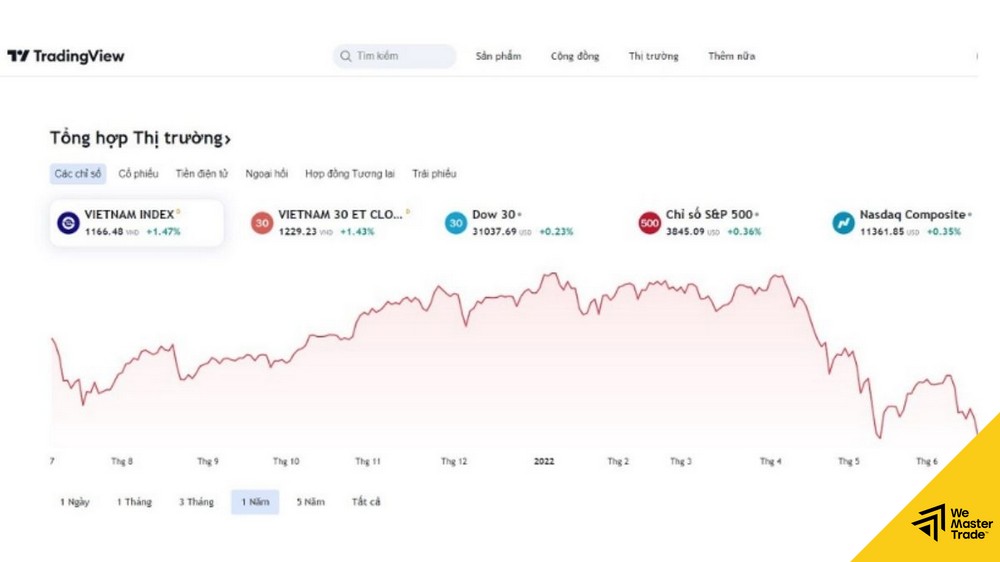
Unlike the stock market, which is centralized in various exchanges, Forex is a decentralized (OTC) market. Prices on platform A may differ from those on platform B.
TradingView Forex solves this problem by:
-
Aggregating data sources: You can view charts from Oanda, FXCM, IDC, etc., to compare prices and volume.
-
Multi-timeframe analysis: Forex fluctuates continuously 24/5. TradingView allows for smoother multi-timeframe analysis than MT4.
-
Intermarket correlation: Easily compare currency pairs (EURUSD) with the strength index (DXY) or Gold (XAUUSD) on the same screen.
2. Guide to setting up TradingView correctly for Forex Traders
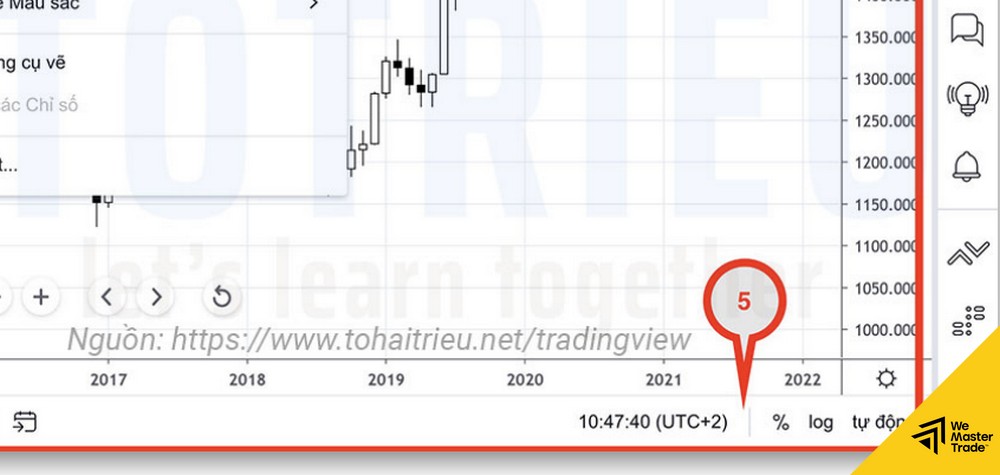
Step 1: Setting the Time Zone – Very important
- Tip: Pro traders often use UTC-4 (New York) to synchronize with the daily candle closing times of international funds.
Step 2: Choose a Data Source
Khi gõ tìm kiếm cặp tiền (VD: GBPUSD), bạn sẽ thấy một list dài. Chọn cái nào?
TradingView for Forex: How to Set Up & Use Indicators Most Effectively in 2026
In the Forex market, speed and accuracy are everything. If MetaTrader (MT4/MT5) is the “place to place orders,” then TradingView is the most powerful Forex analysis tool that helps you see the price movement before the market moves.
However, the default interface of TradingView is often quite generic. To turn it into a dedicated “cockpit” for TradingView Forex, you need to know how to set the time zone, choose the right data source, and use indicators specific to the currency pair.
This article from WeMasterTrade will guide you on how to set up TradingView like a professional fund trader to hunt for thousand-dollar trades.
1. Why do Pro Traders use TradingView to analyze Forex charts?
-
Aggregating data sources: You can view charts from Oanda, FXCM, IDC, etc., to compare prices and volume.
-
Multi-timeframe analysis: Forex fluctuates continuously 24/5. TradingView allows for smoother multi-timeframe analysis than MT4.
-
Intermarket correlation: Easily compare currency pairs (EURUSD) with the strength index (DXY) or Gold (XAUUSD) on the same screen.
2. Guide to Setting Up TradingView for Forex Traders
Step 1: Setting the Time Zone – Very Important
- Tip: Pro Traders often use UTC-4 (New York) to synchronize with the daily candle closing times of international funds.
Step 2: Choosing a Data Source
- OANDA / FXCM: Usually have accurate candlestick data and fairly accurate volume ticks.
- IDC: Aggregated data, smooth, with fewer false candlestick wicks (Suitable for drawing Elliott waves).
Step 3: Enable Economic Events
- Check “Economic events on chart”.
- Benefit: You will see small flags at the bottom of the candlesticks, knowing exactly when news will be released to avoid entering trades or moving your Stoploss.
3. Top 3 “Must-Have” Indicators for TradingView Forex
1. Sessions
- To find the indicator: Type “Sessions” or “Asian London New York”.
- Effect: It will color the background differently for each session.
- Strategy: “Asian Range Breakout” (Break through the sideways price range of the Asian session when the European session opens).
2. DXY (Dollar Index) – The Market’s Compass
3. Currency Strength Meter
- To find the indicator: Type “Currency Strength”.
- Function: It shows which currency is strongest today (e.g., JPY) and which is weakest (e.g., AUD).
- Strategy: Buy the strongest currency / Sell the weakest currency (e.g., Sell AUDJPY) to maximize profits.
4. Process: Analyze on TradingView – Execute Orders to WeMasterTrade
Funded Trader’s 3-step process:
- Step 1 (On TradingView):
- Open the D1 chart to see the main trend + view DXY.
- Open H1, turn on the Sessions indicator. Wait for the price to retrace to the resistance zone during the European/American session.
- Use the R:R (Long/Short Position) measure to determine Entry, Stop Loss, and Take Profit.
- Step 2 (Calculation):
- Determine the risk (Example: 1% of a $100k account = $1000).
- Calculate the number of lots needed.
- Step 3 (On WeMasterTrade MT5):
- Open the MT5 software.
- Enter the order according to the calculated parameters.
- Turn off the computer and let the market run (or set up alerts on TradingView to monitor).
Knowing how to utilize TradingView Forex will give you a comprehensive view that traders who only focus on MT4 cannot see. The combination of TradingView’s analytical capabilities and WeMasterTrade’s vast capital is the formula for financial freedom.
- OANDA / FXCM: Often has accurate candlestick data and volume ticks that closely match reality.
- IDC: Aggregated data, smooth, with few false candle wicks (Suitable for drawing Elliott waves).
Step 3: Enable Economic Events
- Check “Economic events on chart”.
- Benefit: You will see small flags at the bottom of the candlesticks, knowing exactly when news will be released to avoid entering trades or moving your Stoploss.
3. Top 3 “Must-Have” Indicators for TradingView Forex
1. Sessions
- To find the indicator: Type “Sessions” or “Asian London New York”.
- Effect: It will color the background differently for each session.
- Strategy: “Asian Range Breakout” (Break through the sideways price range of the Asian session when the European session opens).
2. DXY (Dollar Index) – The Market’s Compass
3. Currency Strength Meter
- To find the indicator: Type “Currency Strength”.
- Function: It shows which currency is strongest today (e.g., JPY), and which is weakest (e.g., AUD).
- Strategy: Buy the strongest currency / Sell the weakest currency (e.g., Sell AUDJPY) to maximize profit.
4. Process: Analyze on TradingView – Execute orders to WeMasterTrade
Funded Trader’s 3-step process:
- Step 1 (On TradingView):
- Open the D1 chart to see the main trend + view DXY.
- Open H1, turn on the Sessions indicator. Wait for the price to retrace to the resistance zone during the European/American session.
- Use the R:R (Long/Short Position) measure to determine Entry, Stop Loss, and Take Profit.
- Step 2 (Calculation):
- Determine the risk (Example: 1% of a $100k account = $1000).
- Calculate the number of lots needed.
- Step 3 (On WeMasterTrade MT5):
- Open the MT5 software.
- Enter the order according to the calculated parameters.
- Turn off the computer and let the market run (or set up alerts on TradingView to monitor).