












If MetaTrader 4 (MT4) is compared to a durable “tank” for order execution, then TradingView is a cutting-edge “radar system” that helps you see the entire market landscape. Most successful traders at WeMasterTrade follow this workflow: Analyze setups on TradingView chart → Execute trades on MT4/MT5.
Why go through such a complicated process? Because the default MT4 interface is quite outdated and difficult to use. In contrast, TradingView chart is extremely smooth, intuitive, and versatile.
This article will guide you on how to use TradingView chart for beginners, from setting up the interface to applying technical drawing tools to catch market waves effectively.
1. What is TradingView? Why not analyze directly on MT4?
TradingView is an online financial charting platform (web-based). You don’t need to install heavy software—just open a browser and you can view charts for all markets: Forex, Crypto, Stocks, Gold, and more.

Outstanding advantages of TradingView chart:
- Multi-platform support: Works seamlessly on laptops, iPads, and smartphones with cloud synchronization. Draw a trendline on your computer, open your phone later, and it’s still there.
- Superior drawing tools: Smooth, easy to drag and drop, not rigid like MT4.
- Large community: You can view ideas from millions of traders worldwide.
2. Getting familiar with the interface: A trader’s treasure map
To master how to use TradingView chart, you need to understand the 4 main areas on the screen:
Area 1: Search bar (Top-left corner)
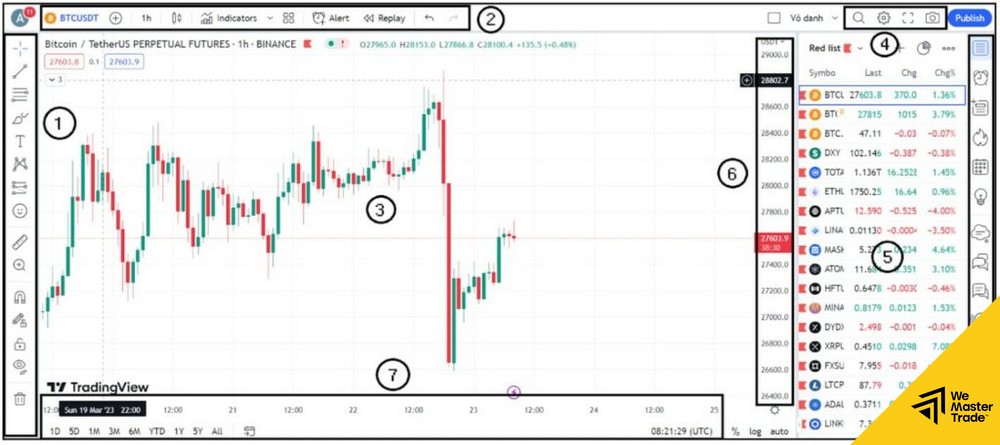
This is where you enter the symbol you want to analyze.
- Example: Type “XAUUSD” or “EURUSD”.
- Note: TradingView aggregates data from many brokers (Oanda, FXCM, Binance…). Choose the data source whose price is closest to the broker you are trading with.
Area 2: Timeframe & candle type (Top center)
- Timeframe: Easily switch from M1, H1, H4 to D1, W1. You can pin frequently used timeframes to the toolbar.
- Candlestick chart: Click the candlestick icon. There are many types such as Heikin Ashi, Line, Bar… but Japanese Candles remain the standard.
Area 3: Drawing tools toolbar (Left vertical panel)
This is your “toolkit.” The most important tools include:
- Trendline: Used to draw diagonal support/resistance and price channels.
- Fibonacci Retracement: Measures pullbacks.
- Long/Short Position: A simulated buy/sell tool to visually calculate the R:R (Risk/Reward) ratio.
Area 4: Indicators
Click the “Indicators” button on the top menu.
- Type the indicator you want (RSI, MACD, Bollinger Bands…).
- TradingView has a massive indicator library coded by the community (which MT4 does not have).
3. A 5-step workflow to analyze trades on TradingView chart
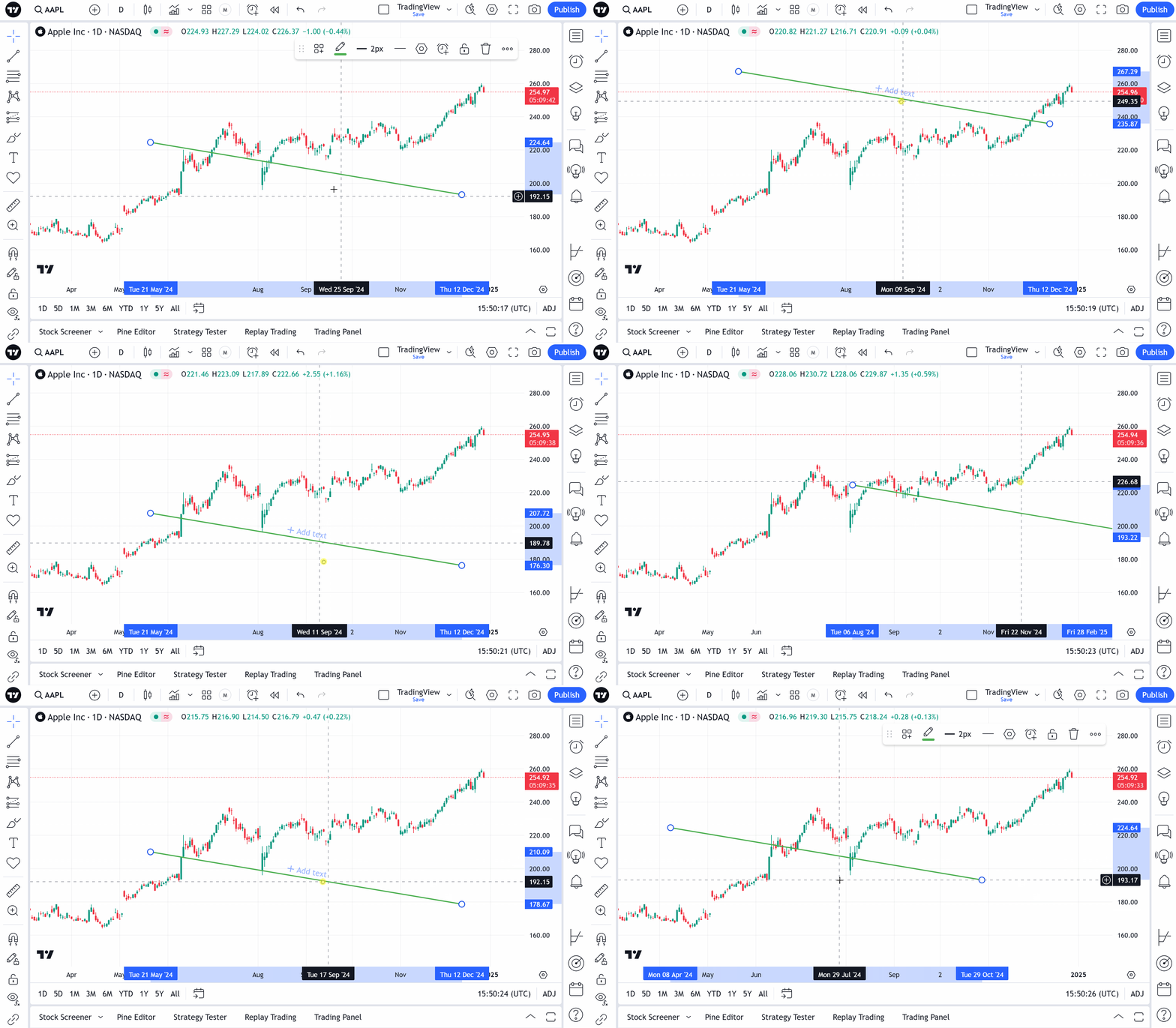
Here’s how to use TradingView chart to properly analyze a trading opportunity:
Step 1: Set up a Watchlist
On the right side of the screen, click the (+) icon to add the instruments you care about (e.g., Gold, Oil, Bitcoin). This helps you quickly scan the market every morning.
Step 2: Multi-timeframe analysis
Open the D1 timeframe to identify the main trend (bullish or bearish). Then switch to H1 or H4 to look for entry points.
Step 3: Use drawing tools
Use Trendlines to connect highs/lows to identify Support and Resistance. These are key price zones where you wait for market reactions.
Step 4: Add confirmation indicators
Turn on RSI or MACD. If price hits a key level and the indicator shows overbought/oversold conditions → a high-quality reversal signal.
Step 5: Calculate R:R using Long/Short Position tool
Drag this tool to your intended entry point. It automatically calculates your risk-to-reward ratio based on SL and TP placement (e.g., Risk 1 to gain 3).
Tip from WeMasterTrade: After finishing analysis on TradingView and confirming your entry, immediately open MT4/MT5 to place the trade. TradingView is the map; MT4 is the steering wheel.
4. Tips for using the free TradingView version effectively
The free (Basic) TradingView account limits you to a maximum of 3 indicators at the same time. How can you work around this?
- Method 1: Use “combined” indicators. Example: Search for indicators like “MACD + RSI” in the library. The community has already merged two indicators into one, saving you a slot.
- Method 2: Hide instead of deleting. If you’re not using an indicator, click the “eye” icon to hide it. Turn it back on when needed.
Mastering TradingView chart is an essential stepping stone to upgrading your technical analysis skills. A clear, well-organized chart helps you make sharper decisions and avoid mistakes caused by misreading prices on outdated platforms.
Don’t hesitate—start getting familiar with this powerful tool today and prepare yourself for the journey toward conquering major trading funds.